 Gacha Nebula
 App Not Installed? 12 Fixes That Work (2026)
You downloaded the Gacha Nebula APK, tapped it with excitement, and instead of the install screen your phone just says App not installed. Frustrating, right? Here is the thing: this error almost never means your phone is broken or the game is gone. It means Android refused the package for a specific reason, and once you know which reason, the fix usually takes less than five minutes.
I dug through the official troubleshooting notes, rival guides, YouTube tutorials, Instagram error screenshots, and hundreds of itch.io comments from real players to find what actually causes the gacha nebula app not installed error in 2026. The fixes below are ordered from most common to least common, so start at the top and work down. Most players are back in the studio creator before Fix 4.
Quick answer: The gacha nebula app not installed error is almost always caused by one of four things: a signature conflict with Gacha Club or another mod already on your phone, the wrong 32-bit or 64-bit APK build, a corrupt or incomplete download, or Google Play Protect blocking the install. Check for an Update button instead of Install first, because that reveals a package conflict, the most common cause by far.
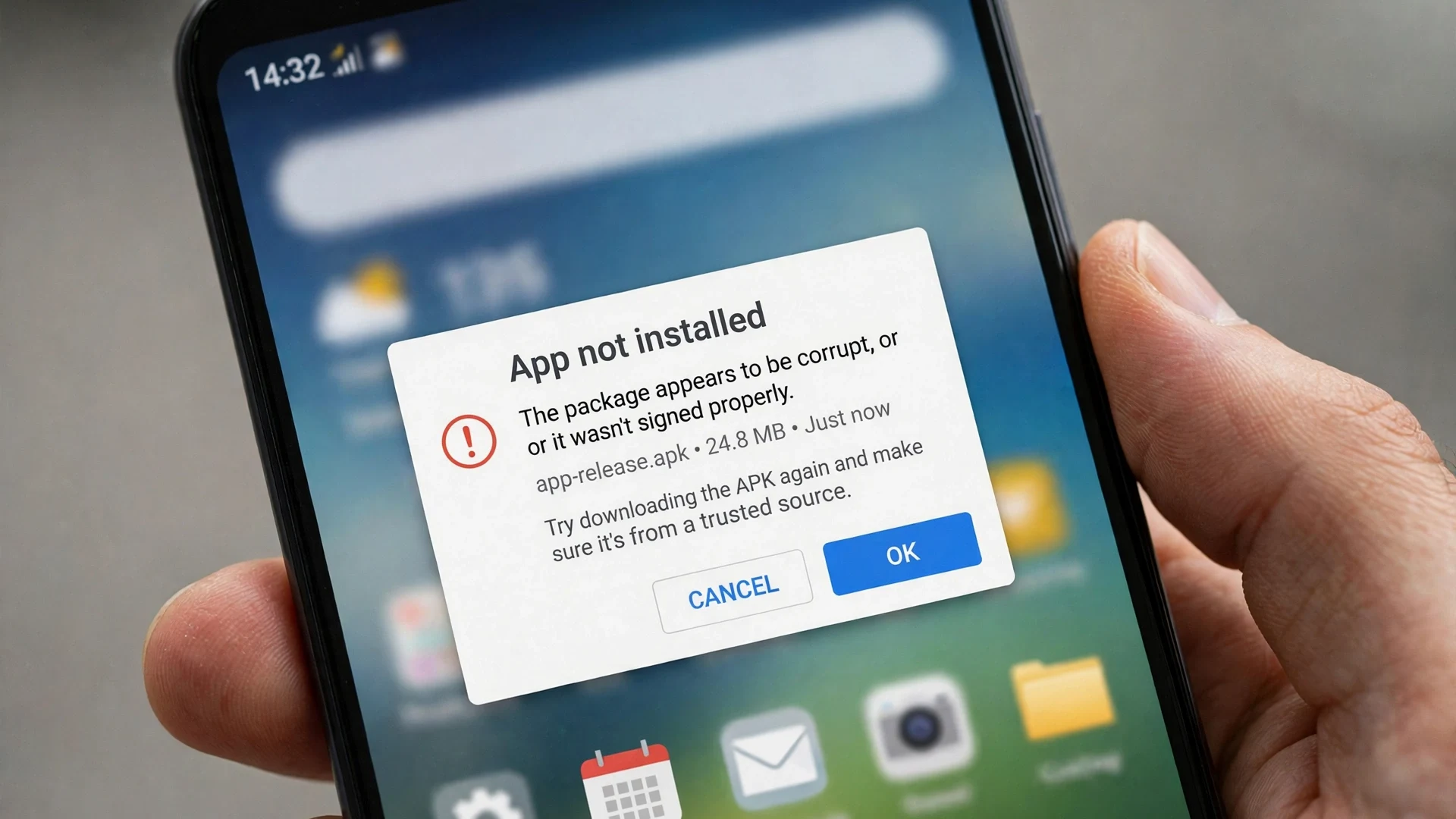
Gacha Nebula App Not Installed: What That Error Really Means
Android shows App not installed when its package installer starts working on an APK and then gives up partway. It is a symptom, not a diagnosis. Think of it like a check engine light: the same warning can point to several different problems. Based on real player reports, the causes fall into four buckets.
Cause 1: A Signature or Package Conflict (Most Common)
Your phone already has an app with the same package name but a different digital signature. The usual suspects are the official Gacha Club from the Play Store, another Gacha mod (Gacha Nox, Gacha Luminals), an older Gacha Nebula build, or a repack from a third party site. Android sees the same package name, assumes it is an update, checks the signature, finds a mismatch, and refuses. This single cause is behind most of the complaints players post online.
Cause 2: Wrong 32-Bit or 64-Bit Build
Gacha Nebula ships as two separate APKs, one for 64-bit phones and one for 32-bit phones. Install the wrong one and the installer fails, sometimes with the extra message that the package appears to be invalid. Budget phones and older models are often 32-bit, which surprises a lot of players.
Cause 3: Corrupt or Incomplete Download
These APKs are huge, several hundred megabytes. On mobile data or shaky Wi-Fi the download can stall or silently truncate, leaving you with a broken file that cannot be parsed. Tapping it gives you App not installed or a package invalid message.
Cause 4: Play Protect or Android Blocking the Install
Google Play Protect flags sideloaded mod APKs, and on Android 14 and newer the system can hard block apps built for older Android versions. Both produce install failures that look identical to the other causes, which is why players waste hours on the wrong fix.
Use this decoder to diagnose your gacha nebula app not installed error before trying fixes at random. Match what you see on screen to the likely cause, then jump to the fix.
| What you see on screen | Likely cause | Go to |
|---|---|---|
| Installer button says Update, then fails | Signature conflict with an installed app | Fix 1 |
| App not installed with no other detail | Conflict, wrong build, or corrupt file | Fixes 1 to 4 |
| Package appears to be invalid | Corrupt download or wrong architecture | Fixes 3 and 4 |
| Harmful app blocked warning | Play Protect | Fix 5 |
| Designed for an earlier Android version | Android 14+ SDK block | Fix 8 |
| Install button greyed out or nothing happens | Unknown apps permission missing | Fix 6 |
| Error appears when OPENING the app, not installing | Play Protect removed it after install | Fix 11 |
Fix 1: Check for the Update Button (Package Conflict)
This is the fix that solves the gacha nebula app not installed error for most players, so do it first. Open the APK file again and look closely at the installer button. Does it say Install, or does it say Update?
Why the Update button appears
If the button says Update, Android found an app on your phone with the same package name as Gacha Nebula. That is usually the official Gacha Club from the Play Store, but it can also be Gacha Nox, another Nebula copy, or a repack downloaded from a random APK site. The mod and the original app share a package name, so Android treats the mod as an update to the existing app. Then it compares digital signatures, sees they do not match, and fails with App not installed. One player on itch.io described it exactly: the installer said updating Gacha Club, and pressing Update just gave the error.
The safe path: back up, then uninstall the conflicting app
Here is the part nobody warns you about: uninstalling the conflicting app wipes its data, including your saved characters. One creator shared that she lost her Countryhumans OCs doing exactly this. So before you uninstall anything, export your character codes or back up your data if the app still opens. Then go to Settings, Apps, find the conflicting app (Gacha Club or the old mod), and uninstall it. Now tap the Gacha Nebula APK again. With the conflict gone, the button should say Install, and the install should complete.
Fix 2: Keep Both Apps with an APK Editor Package Rename
Do not want to delete Gacha Club? There is a clever workaround buried in the itch.io comments that no mainstream guide covers. You can rename Gacha Nebula's package name with an APK editor, which makes Android treat it as a completely different app. Then both apps live side by side with no conflict.
How the package rename works
Every Android app has a package name, a unique ID like a license plate. Two apps cannot share one. Tools like MT Manager or APK Editor Studio can open the Nebula APK, change its package name to something unique, and repackage it. Players in file manager apps like ZArchiver can even inspect package names to confirm which apps are clashing before they start.
When to use this method
Use it when you actively play both Gacha Club and Gacha Nebula and refuse to give one up. Fair warning: this is an advanced method. Repackaging an APK takes some patience, and you should only do it on the official build from the creator's itch.io page, never on a repack from a third party site, since repacks with altered signatures are a known source of install conflicts. If the process sounds like too much, Fix 1 (uninstalling the conflicting app) is faster and simpler.
Fix 3: Install the Correct 32-Bit or 64-Bit Build
Gacha Nebula comes in two builds, and grabbing the wrong one is the second most common reason for the gacha nebula app not installed error. The 64-bit build only works on 64-bit phones, and while many 64-bit phones can also run 32-bit apps, 32-bit phones can never run 64-bit apps.
How to check your phone's architecture
The creator's official install guide shares a neat trick: open the official Gacha Club from the Google Play Store (not a modded version) and look at the bottom left corner of the title screen. It displays which build your device runs. Alternatively, check your phone's specs online or use a free hardware info app. When in doubt, try both APKs, the official guide itself recommends this.
What players report
Multiple players confirmed that switching builds fixed their install. One user's 64-bit download kept failing with a package invalid message, and the 32-bit version installed fine on the first try. If you see the package appears to be invalid message, the cause is usually either this architecture mismatch or a corrupt download, which brings us to the next fix.
You can grab both builds from the official Gacha Nebula download page and test which one your device accepts.
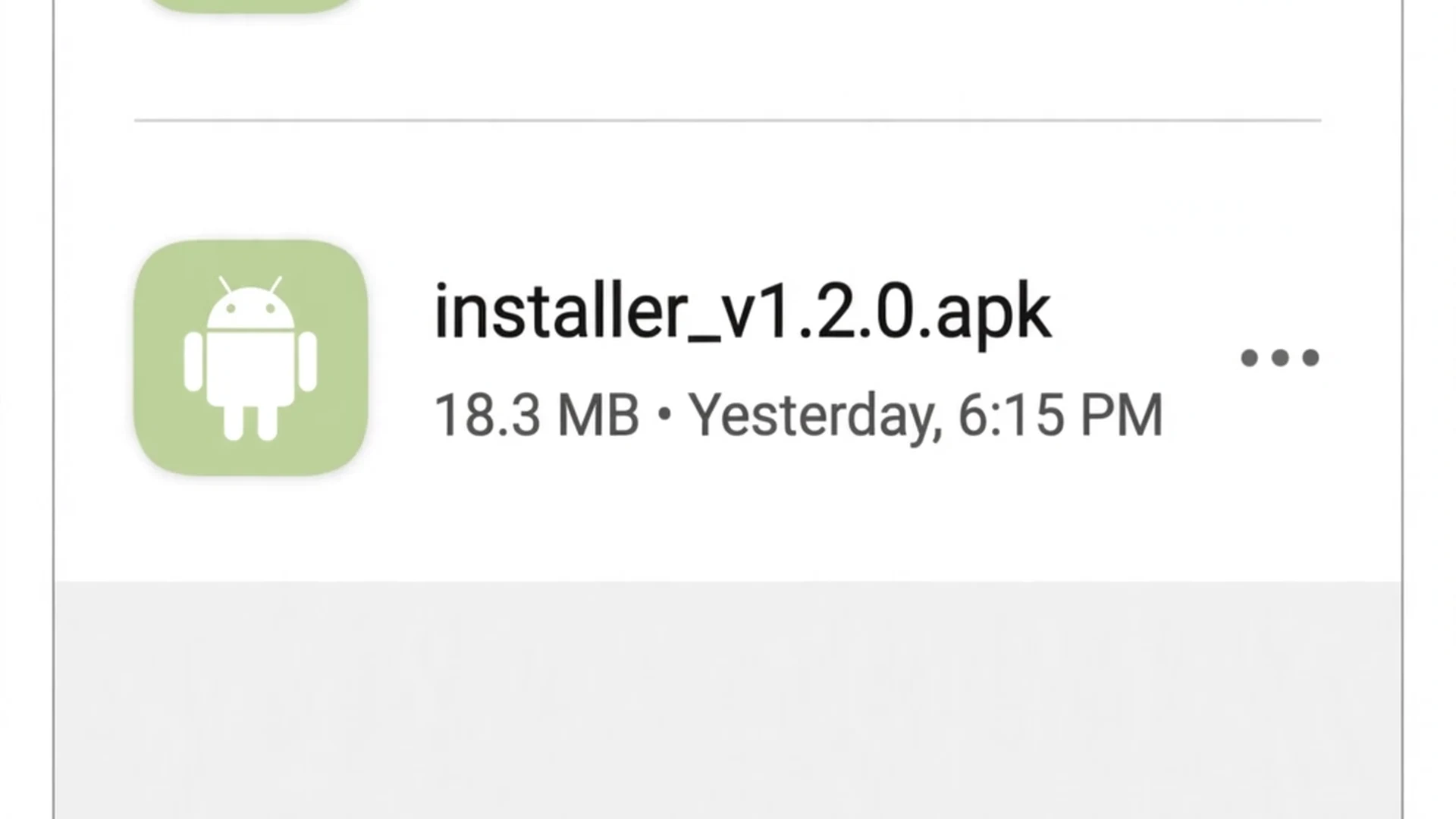
Fix 4: Re-download the Full APK and Check the File Size
A surprisingly large number of gacha nebula app not installed errors come from broken downloads. These APK files are enormous, roughly 369 MB for the 64-bit build and 370 MB for the 32-bit build in the 1.6 era, with 1.7 builds observed at 421 MB and even 569 MB. On mobile data or unstable Wi-Fi, downloads stall or truncate without any warning, and the resulting file cannot be parsed.
How to verify your download
Before tapping install, open your file manager and check the APK's size against the expected size listed on the download page. If it is much smaller, the download is incomplete. Also look for duplicate files: if you see names like Gacha Nebula 1.6 64 bits (Android) (2).apk, you have re-downloaded over a stale copy, and you might be tapping the broken older file. Delete every old copy, download once more from the official source over stable Wi-Fi, and install the fresh file. Players on limited mobile data plans hit this constantly, so a Wi-Fi connection is worth the wait.
Always download from the creator's official itch.io page (noxula.itch.io/gacha-nebula) or our download page that links to it. Random APK mirror sites host repacks under different package names and signatures, which loops you right back to the Fix 1 conflict.
Fix 5: Get Past Play Protect the Safe Way
Google Play Protect scans sideloaded apps and will often flag Gacha Nebula with a Harmful app blocked or risky app warning, which is one more face of the gacha nebula app not installed problem. This is normal for mod APKs installed outside the Play Store and does not by itself mean the file is dangerous, provided you downloaded it from the official source. Many guides tell you to disable Play Protect entirely. Do not do that. There is a safer per-install path that players confirm works.
The safe bypass: More details, then Install anyway
When the Play Protect warning appears, tap More details (sometimes shown as Details), then tap Install anyway. This approves just this one install instead of turning off protection for your whole phone. A widely shared video tutorial walks through exactly this flow, and commenters confirmed it worked for them. Only use this path for the official itch.io build. If a random mirror site's APK triggers the warning, treat that as a genuine red flag.
The ADB diagnostic test
Want proof that Play Protect is your culprit? If you have a computer handy, installing via ADB (Android Debug Bridge) bypasses Play Protect entirely. Connect your phone with USB debugging on and run the install command. If the ADB install succeeds but tapping the file on your phone fails, the answer is Play Protect and nothing else, and you can stop chasing other causes.
Fix 6: Turn On Install Unknown Apps for the Right App
Modern Android versions removed the old global Unknown sources toggle. Now you grant the install permission per app, and a lot of players enable it for the wrong one. If you downloaded the APK in Chrome but granted the permission to your file manager (or vice versa), the install button stays greyed out or nothing happens.
The exact path
Go to Settings, Apps, Special app access, Install unknown apps. You will see a list of apps. Find the exact app you use to open the APK file, usually Chrome or your file manager, and toggle Allow from this source on. This method comes straight from a Gacha mod developer's own troubleshooting advice and resolves the greyed-out install button for most players. Then open the APK from that same app and try again.
Fix 7: Free Up Storage and Restart Your Phone
The APK alone is up to 569 MB, and Android needs extra breathing room during installation for unpacking and verification. If your storage is nearly full, the installer fails silently. As a rule of thumb, keep at least 1 to 1.5 GB of internal storage free before installing. Clear out old downloads, unused apps, or cached videos, then try again.
And do not skip the simplest fix in this guide: restart your phone. A player on itch.io confirmed that a plain restart fixed their gacha nebula app not installed error after everything else failed. Installation services can get stuck in a bad state, and a reboot clears it.
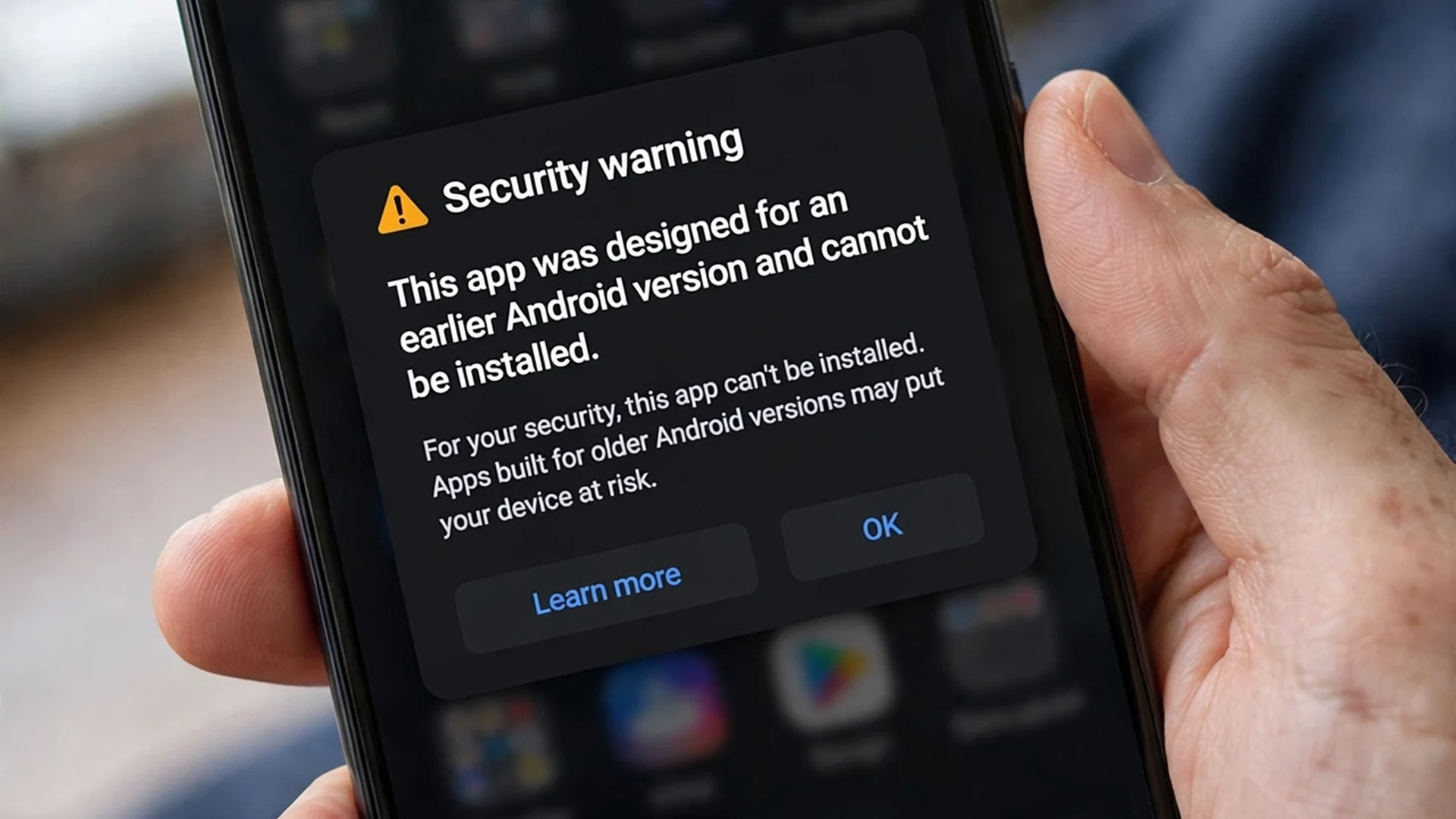
Fix 8: Designed for an Earlier Android Version (Android 14+)
On Android 14 and newer, you might see a system message saying the app was designed for an earlier Android version and lacks the latest privacy protections, followed by the install failing. This is the operating system refusing apps that target an outdated SDK version, and screenshots of this exact block on Gacha Nebula downloads have been shared by players.
There is no settings toggle that overrides this block. Your options are to install a newer Gacha Nebula build that targets a current SDK (check the official itch.io page for the latest release), or report it on the creator's Discord so a future build addresses it. Do not try to force it with shady installer apps, those cause more problems than they solve.
Fix 9: Remove Leftovers with Uninstall for All Users
Here is a sneaky cause of the gacha nebula app not installed error. You uninstalled Gacha Club, but the installer still behaves as if it is there. On phones with multiple users, a work profile, Samsung Secure Folder, or Xiaomi Second Space, uninstalling from your main profile does not always remove the app everywhere. The leftover copy in another profile still holds the package name, and the signature conflict persists.
How to clear it properly
Go to Settings, Apps, tap the three-dot menu, and look for an option like Uninstall for all users. If the conflicting app appears under your work profile or Secure Folder, remove it there too. Advanced users can also clear it with ADB. After every copy is truly gone, the Nebula install should proceed normally.
Fix 10: Xiaomi, OPPO, and Samsung Quirks
Some manufacturers add their own verification layers on top of Android, and players on these brands report install failures more often.
Xiaomi (MIUI and HyperOS)
MIUI Optimization can cause verification failures during sideloading. Try turning it off under Developer options, and while you are there, enable Install via USB, which Xiaomi requires for some sideloaded packages. You can turn MIUI Optimization back on after the install completes.
OPPO, Vivo, and Realme (ColorOS)
Players on OPPO phones running ColorOS have reported that heavy Gacha mods refuse to install or misbehave, with some suspecting the OS-level app management. Make sure the install permission is granted (Fix 6), try the 32-bit build if the 64-bit one fails, and install from internal storage rather than any external location.
Samsung (One UI)
On Samsung phones, check Settings, Biometrics and security, Install unknown apps for the correct source app, and if you use Secure Folder, remember Fix 9: a copy of the conflicting app inside Secure Folder will block the install just like a regular one.
Fix 11: App Not Installed When You OPEN the App
A rarer variant: the install finishes, the icon appears, but tapping it shows App not installed. One player reported exactly this while their other Gacha mods worked fine. The likely story is that Play Protect scanned the app after installation and silently removed or quarantined it.
Reinstall using the safe bypass from Fix 5 (More details, Install anyway), then open the Play Store, tap your profile, go to Play Protect, and check the scan history to confirm what happened. If Play Protect keeps removing it, that is its verdict on the file, and you should only proceed with builds from the official source.
Fix 12: Last Resorts That Actually Help
If the gacha nebula app not installed error survives all eleven fixes above, try these last resorts in order before giving up:
- Move the APK to internal storage. Files sitting on an SD card or adoptable storage can fail to parse. Copy the APK into your phone's internal Downloads folder and install from there.
- Clear the package installer's cache. Go to Settings, Apps, show system apps, find Package installer, and clear its cache. A corrupt installer state can block every sideload.
- Update Google Play Services. An outdated Play Services build can interfere with installs. Update it from the Play Store.
- Download one final fresh copy. Use a different browser or network, verify the file size (Fix 4), and install immediately. If it still fails after all twelve fixes, the issue is likely device-specific, and the creator's Discord community is the best place for help.
What NOT to Do
A few warnings before you go. Do not factory reset your phone for a gacha nebula app not installed error. It is the nuclear option for a problem that is almost always a simple conflict or corrupt file, and you will lose everything for nothing. Do not disable Play Protect globally; the per-install Install anyway path from Fix 5 gives you what you need without leaving your phone unguarded. Avoid repack sites whose listings show uploader names like KAIB LTD INC instead of the actual creator; those builds carry different signatures and package names that cause exactly the conflicts in Fix 1. And never uninstall a Gacha app to fix a conflict without backing up your characters first, because that data does not come back.
Players on desktop are not left out either. If you would rather skip phone troubleshooting entirely, our Gacha Nebula Mac and Linux guide covers playing on a computer instead.
Frequently Asked Questions
Why does Gacha Nebula say app not installed?
The most common reason is a signature conflict: an app with the same package name, usually Gacha Club or another mod, is already installed with a different signature. Other causes include the wrong 32-bit or 64-bit build, a corrupt download, or Play Protect blocking the install. Match your error message to the cause in the decoder table above.
Why does the installer ask me to update instead of install?
When the button says Update, Android found an app with the same package name already on your phone, most often the official Gacha Club. It tries to update that app with the mod, the signatures do not match, and the install fails. Uninstall the conflicting app first (after backing up your characters), and the button will change to Install.
Can I keep Gacha Club and Gacha Nebula installed at the same time?
Not with the default builds, because they share a package name and Android treats one as an update of the other. The workaround is renaming Gacha Nebula's package name with an APK editor like MT Manager, which makes Android see them as two different apps. It is an advanced method, so only attempt it on the official itch.io build.
Should I download the 32-bit or 64-bit version of Gacha Nebula?
It depends on your phone. Most modern phones are 64-bit, but many budget and older models are 32-bit, and a 64-bit APK will never install on a 32-bit device. Check the bottom left corner of the official Gacha Club title screen, which shows your build, or simply try both APKs as the creator's own guide recommends.
Is it safe to tap install anyway on the Play Protect warning?
For the official build from the creator's itch.io page, yes, this is the standard path every sideloaded mod uses, and players confirm it works. Use More details then Install anyway for that single install rather than disabling Play Protect entirely. If a random mirror site's file triggers the warning, treat it as a real red flag and do not proceed.
Will I lose my characters if I uninstall and reinstall to fix the error?
Yes, uninstalling a Gacha app wipes its local data, including your saved OCs, unless you backed them up first. Export your character codes or use any in-app backup option before uninstalling anything. This is the step players regret skipping most, so make it a habit before every reinstall.
What does package appears to be invalid mean?
It means Android could not parse the APK file. The two usual reasons are a corrupt or incomplete download, common with these huge 369 to 569 MB files on mobile data, or installing the wrong architecture build for your phone. Re-download the full file over stable Wi-Fi, verify its size, and try the alternate 32-bit or 64-bit build.
Conclusion
The gacha nebula app not installed error looks scary, but it is one of the most solvable problems in the Gacha mod world. Nine times out of ten, you are dealing with a package conflict, the wrong build, a broken download, or Play Protect doing its job a little too eagerly. Work through the fixes in order, back up your characters before uninstalling anything, and stick to the official itch.io build.
If this guide got the game running for you, you are all set. And if you ever hit the gacha nebula app not installed error again after a future update, start with Fix 1: that Update button is almost always telling you exactly what is wrong.