 Gacha Nebula
How to Install Gacha Nebula APK Safely on Android
To install Gacha Nebula APK safely, you need to do three things: get the file from a source you trust, check the file before you install it, and install it the right way. None of those steps is hard. Together, they are the difference between a safe install and a phone full of adware.
Gacha Nebula is a free fan-made mod of Gacha Club by the creator noxula, with Deana_3 and Aggie. It is not on Google Play, so you cannot install it from the store. You download an APK file and install it yourself, a process called sideloading. Sideloading is normal on Android, and it is safe when the file is real. It is dangerous when the file comes from a site you cannot verify.
This guide walks through the safe install from start to finish: where to get the file, how to check it, how to pick 32-bit or 64-bit, how to allow the install, what the Play Protect warning means, and what to do if the install fails. If you only want the file, go to the download centre. If you want to know whether the mod itself is safe, read our safety guide first.
Step 1: Download from the Official Source Only
The only official source for Gacha Nebula is the creator noxula's itch.io page, listed on our official sources page. Every safe install starts there, or from a verified mirror such as this site's download centre, which hosts the same files with their sizes shown.
Do not download the APK from a random site, a video description, a comment link, or a file host you have never heard of. Mirror sites relabel old versions, bundle adware into the APK, or offer files with version numbers that do not exist, such as 2.0. The most common trap is a site that looks professional and offers the download for free, then asks you to complete a survey or install another app before the download starts. A real Gacha Nebula download never asks for that.
The mod is always free. If a site asks you to pay for the APK, it is not offering the real mod. If a site asks for your email, your phone number, or any personal details before the download starts, leave it. A real download asks for nothing except a tap on the download button.
Step 2: Verify the File Before You Install It
Before you tap the APK file, check it. This takes ten seconds, and it catches the most common problems: a download that did not finish, and a file that is not what it claims to be.
First, check the file size. The latest version, 1.7.0.2, is 421.12 MB. Version 1.7.0 is 421.12 MB for 64-bit and 421.34 MB for 32-bit. Version 1.6 is 369.86 MB for 64-bit and 370.07 MB for 32-bit. Version 1.6.3 is 369.86 MB. If the file you downloaded is much smaller than the size listed for that version, the download did not finish. Delete it and download it again. If the file is only a few MB, it is not the real mod at all. Delete it.
Second, check the file name. A real Gacha Nebula APK has a name that matches the version, such as the 1.7.0.2 file or the 1.7.0 64-bit file. A file with a random name, a name that promises a version that does not exist, or a name that ends in something other than .apk is not the real mod.
Third, check where the file came from. Open your browser's download list and confirm the file came from the site you meant to download from. If you tapped a link in a comment or a message and the file came from a different domain, delete it and start again from the download centre.
Step 3: Pick 32-Bit or 64-Bit
Most Gacha Nebula versions come in two Android builds: 64-bit and 32-bit. Picking the wrong one is the most common reason an install fails, so it is worth getting this right before you download.
Most phones made in the last few years are 64-bit, so the 64-bit APK is the right choice for most players. If your phone is older, or if it is a budget phone with a 32-bit processor, you need the 32-bit APK. The two files are almost the same size, so size alone does not tell you which one to pick. Version 1.7.0 is 421.12 MB for 64-bit and 421.34 MB for 32-bit. Version 1.6 is 369.86 MB for 64-bit and 370.07 MB for 32-bit.
If you are not sure which architecture your phone uses, download the 64-bit file first. If it is the wrong one, Android will refuse to install it with an app not installed error, and nothing bad will happen. You can then switch to the 32-bit file. Our 32-bit vs 64-bit guide shows how to check your phone before you download, and our app not installed guide explains the fix if the install fails.
Two builds on this site do not state their architecture in the file name: version 1.7.0.2 and version 1.6.3. We do not claim 32-bit or 64-bit for those two, because the file name does not say. If you need a build with a stated architecture, use 1.7.0 or 1.6 instead.
Step 4: Allow Install Unknown Apps
Android blocks APK installs by default, because an APK from outside the Play Store has not been reviewed by Google. To install Gacha Nebula, you need to allow your browser to install apps. This is a normal Android setting, and it is safe to turn on for the install, as long as you turn it back off afterwards.
Here is the exact path. Open Settings, then Apps, then Special app access, then Install unknown apps. Find your browser in the list, tap it, and turn on Allow from this source. The menu names vary slightly between phone brands, but the path is the same on most Android phones. On some phones, the setting is under Settings, then Security, then Install unknown apps, or under Settings, then Privacy.
Only allow the browser you downloaded the file with. Do not allow every app on the list. The setting is per-app, so allowing your browser does not allow other apps to install APKs. When the install finishes, go back to the same setting and turn it off again. Leaving it on does not harm your phone by itself, but it removes a layer of protection, and there is no reason to leave it on once the game is installed.
Step 5: Install Gacha Nebula APK Safely
With the file verified and the permission allowed, the install itself takes about 20 seconds on a mid-range phone. Open your Downloads folder, or tap the download notification, and tap the APK file. Android will show an install screen with the app name and the permissions it asks for. Tap Install, and wait for it to finish.
Read the permissions on the install screen before you tap Install. Gacha Nebula asks for storage access, because it needs to save your characters and scenes on your phone. If an APK that claims to be Gacha Nebula asks for permissions that do not make sense, such as access to your contacts, your messages, or permission to make calls, do not install it. Cancel the install, delete the file, and download again from the download centre.
When the install finishes, Android will offer to open the app. Tap Open, and the game will start in the character studio. There is no account to create and no sign-in step. If the game opens and your characters load, the install worked. If you are updating from an older version, check that your characters are still there. If any are missing, import their OC codes from your backup, following our update guide.
What the Play Protect Warning Means
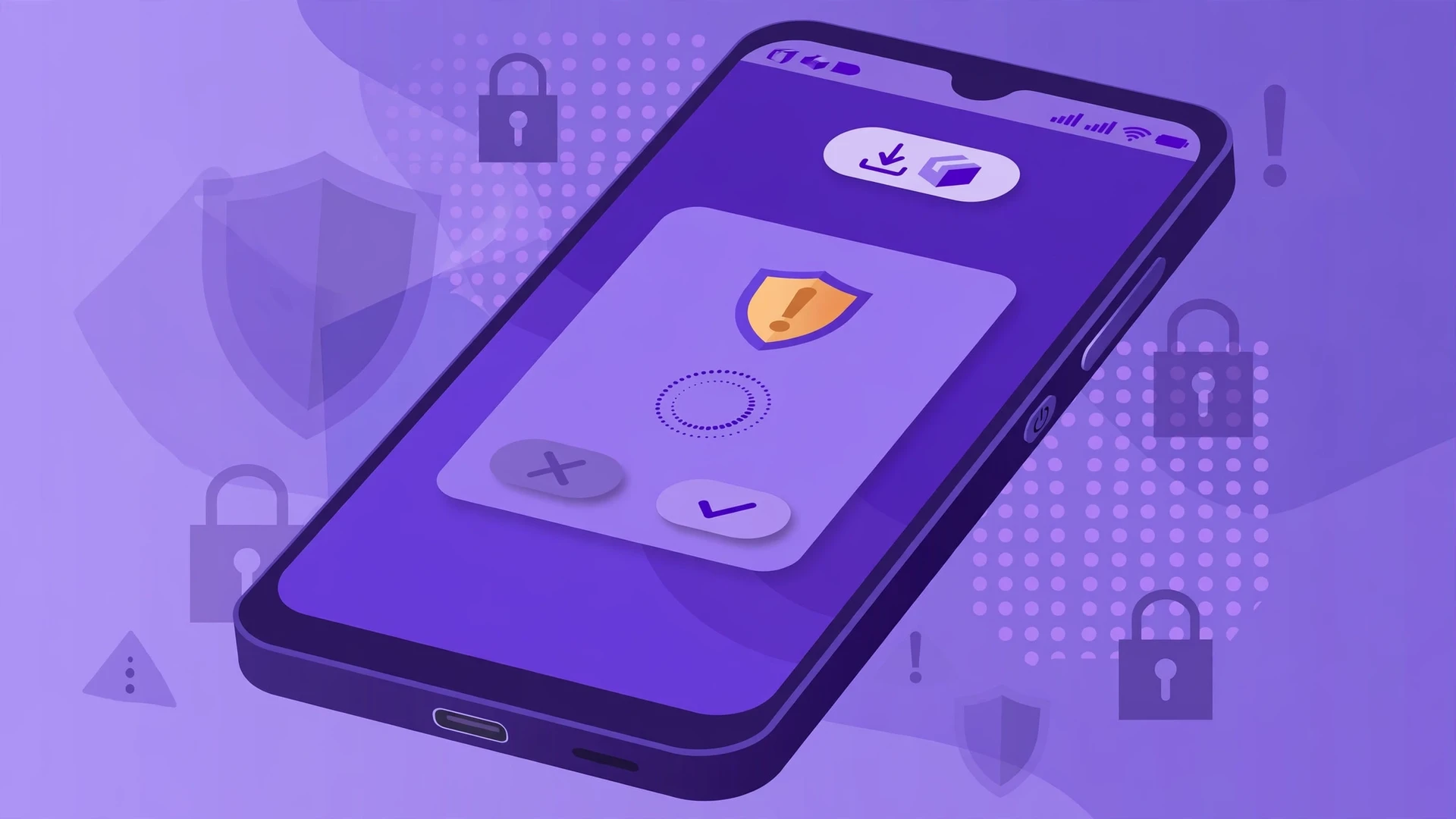
Most players see a Google Play Protect warning during the install. The warning says the app is from an unknown developer, or that Play Protect does not recognise the app, and it offers an Install anyway button. This looks alarming, but it is normal for an APK from outside the Play Store, and it is not proof that the file is dangerous.
Play Protect checks apps against Google's database. Because Gacha Nebula is not on Google Play, it is not in that database, so Play Protect cannot vouch for it. The warning is Play Protect doing its job: telling you that this app did not come from the store, and asking you to confirm that you trust the source. The decision is yours, and it should depend on where you got the file.
If you downloaded the file from this site or from the creator's official page, and the file size matches the listed size, then tapping Install anyway is the right call. If you downloaded the file from a site you do not trust, or if the size does not match, do not tap Install anyway. Cancel, delete the file, and download again from a source you trust. Never turn Play Protect off to force an install. Play Protect is a safety net, and turning it off removes protection from your whole phone, not just from this one install.
After the Install: Three Checks
When the game is installed, run three quick checks before you call it done. First, turn Install unknown apps back off for your browser, using the same Settings path as before. This closes the door you opened for the install, and it takes ten seconds.
Second, open the game and check that it runs. Create a test character, save it, and close the game. Open it again and confirm the character is still there. This confirms the game can save data on your phone, which is the most common thing to go wrong after a bad install.
Third, check the version number inside the game. It should match the version you downloaded. If it shows an older version, you may have installed the wrong file, or the install did not replace the old build. In that case, download the right file from the download centre and install it again.
Install Problems and Fixes
Most install problems have a simple cause. Work through this list before you assume the file is broken.
App not installed. This is the most common install error. It usually means the APK architecture does not match your phone, or the download did not finish. Check the file size first. If it is much smaller than listed, download it again. If the size is right, try the other architecture. Our app not installed guide covers every cause in full.
Parse error or package appears to be corrupt. This usually means the download did not finish, or your Android version is too old for the APK. Delete the file, download it again, and check the size. If the size is right and the error repeats, your phone may need an older version. Try version 1.6, which is the smallest recent build, from the old versions page.
Not enough storage. The APK is over 400 MB, and the installer needs room beyond the file size. Free at least 1 GB before you install. Delete old videos, unused apps, or cached data, then try again.
The game crashes on opening. Close other apps to free memory, then try again. If it still crashes, uninstall the game, download the APK again, and install it fresh. Our crashing guide covers crash problems in more detail.
Play Protect blocks the install. Play Protect warns about apps from outside the store, but it does not block them outright. Tap Install anyway, but only if you downloaded the file from this site or the creator's official page and the size matches. If the source is uncertain, cancel and download again from a trusted source.
The install finishes but the game will not open. Restart your phone, then try again. If it still will not open, uninstall the game and install it fresh from a new download. A bad install is the most common cause, and a fresh install fixes it.
Safe Install Checklist
| Check | What to do |
|---|---|
| Source | Download only from the creator's itch.io page or this site's download centre |
| Price | Free, always, no payment and no survey |
| File size | Matches the listed size, 421.12 MB for 1.7.0.2, 369.86 MB for 1.6 64-bit |
| Architecture | 64-bit for most phones, 32-bit for older phones |
| Permission | Allow Install unknown apps for your browser only, then turn it off |
| Play Protect | Read the warning, install anyway only if the source and size check out |
| After install | Turn the permission off, test a save, check the version number |
Keep this checklist in mind every time you install a new version. The steps are the same for every update, and they take less than a minute once you know them. A safe install is not about being technical. It is about checking the source, checking the size, and not rushing past the warnings.
Frequently Asked Questions
How do I install the Gacha Nebula APK safely?
Download the APK from the creator's official page or this site's download centre, check that the file size matches the listed size, allow Install unknown apps for your browser, install the file, then turn the permission back off.
Is it safe to install the Gacha Nebula APK?
Yes, it is safe when you download it from the official source or a verified mirror and check the file size before installing, and our safety guide explains the full checks.
What does the Play Protect warning mean?
Play Protect warns you because Gacha Nebula is not on Google Play, so it cannot vouch for the app, and you should only tap Install anyway if the source and file size check out.
Should I turn off Play Protect to install Gacha Nebula?
No, never turn Play Protect off, because it protects your whole phone, and the warning is normal for an APK from outside the store.
Do I need 32-bit or 64-bit Gacha Nebula?
Most modern phones need the 64-bit APK, while older phones need the 32-bit APK, and our 32-bit vs 64-bit guide shows how to check your phone.
Why does the install say app not installed?
That usually means the APK architecture does not match your phone or the download did not finish, so check the file size and try the other architecture.
Is Gacha Nebula free to install?
Yes, Gacha Nebula is completely free, and any site that asks you to pay for the APK is not offering the real mod.
What should I do after installing the APK?
After you install Gacha Nebula APK safely, turn Install unknown apps back off for your browser, open the game, test that a character saves, and check that the version number matches the version you downloaded.
Start from the Gacha Nebula homepage to find every guide and download on this site.