 Gacha Nebula
How to Update Gacha Nebula Without Losing Data (2026)
Learning how to update gacha nebula without losing data starts with one reassuring fact: you do not need to delete anything. Every update panic in the community comes from the same mistake, which is uninstalling the old version before installing the new one. The creator's own install instructions say it plainly: you can install a newer itch version into the older itch version, and you do not need to back up anything. This 2026 guide shows you the safe update method for Android and PC, how to back up your OCs with export codes as a safety net, and how to fix the strange undefined slots that sometimes appear after an update.
If you already updated and something looks wrong, do not panic. Most post-update scares are harmless and reversible, and this guide walks you through each one. Let us make sure your characters survive every update from here on.
Quick answer: To update Gacha Nebula without losing data, never uninstall the old version first. On Android, download the new APK from the creator's official itch.io page and install it directly over your existing app. Your OCs stay intact. On PC, extract the new Windows ZIP into a separate folder and keep the old one until the new build works.
The One Rule: How to Update Gacha Nebula Without Losing Data
Here is the rule that decides everything: never uninstall the old version before installing the new one. On Android, your OCs and saved data live inside the app's local storage. Uninstalling the app deletes that storage, and no update trick can bring it back. Installing the new APK directly over the existing app keeps that storage untouched, which is exactly why the creator's install instructions tell you to install the newer version into the older one instead of removing anything first.
This one habit prevents nearly every real data-loss story in the community. People lose OCs because a mirror site told them to uninstall first, or because they assumed a clean install was safer, or because their phone storage was full and they deleted the app to make room. The safe path is always the same: keep the old app installed, install the new build over it, and only then check that everything works. Everything else in this guide is the safety net around that rule.
How to Update Gacha Nebula on Android Without Losing Data
Android updates are manual. The creator's page states clearly that itch.io will not auto-update the game on Android, so you fetch each new build yourself. Here is how to update gacha nebula without losing data on Android, step by step.
Step 1: Back up your OC codes first
Before touching anything, export your character codes (the full walkthrough is below). This takes two minutes and turns any update from a risk into a non-event. Even though the install-over method preserves data, a backup means you are protected against the unexpected, like a dead battery mid-install or a corrupted download.
Step 2: Download the new APK from the official page only
Get the new build from the creator's official page, noxula.itch.io/gacha-nebula. The creator warns directly to only ever install from that page. A build from a mirror site can carry a different app signature, and installing a differently signed APK over yours can fail with an app not installed error or, worse, replace your data. If you are unsure whether to grab the 32-bit or 64-bit build, our 32-bit vs 64-bit chooser sorts it out. And if the new build is labeled 1.7.0.2, read our 1.7.0.2 verification guide before trusting a mirror's version claims.
Step 3: Install the APK over the existing app
Open the downloaded APK and install it. Android will recognize the same package and update the app in place, keeping your data. Do not tap uninstall at any point, and do not clear the app's data from Settings. If Android shows an app not installed error here, stop: that usually signals a signature or package mismatch with the file you downloaded, and forcing it can cost you your data. Our App Not Installed guide covers every cause and fix.
Step 4: Open the game and check your OCs
Launch the updated app and check your character slots. New extra slots may show as undefined at first; that is a known cosmetic quirk with a simple fix covered below. Confirm your OCs are present before you delete the downloaded APK file to free space.
How to Update Gacha Nebula on PC Without Losing Characters
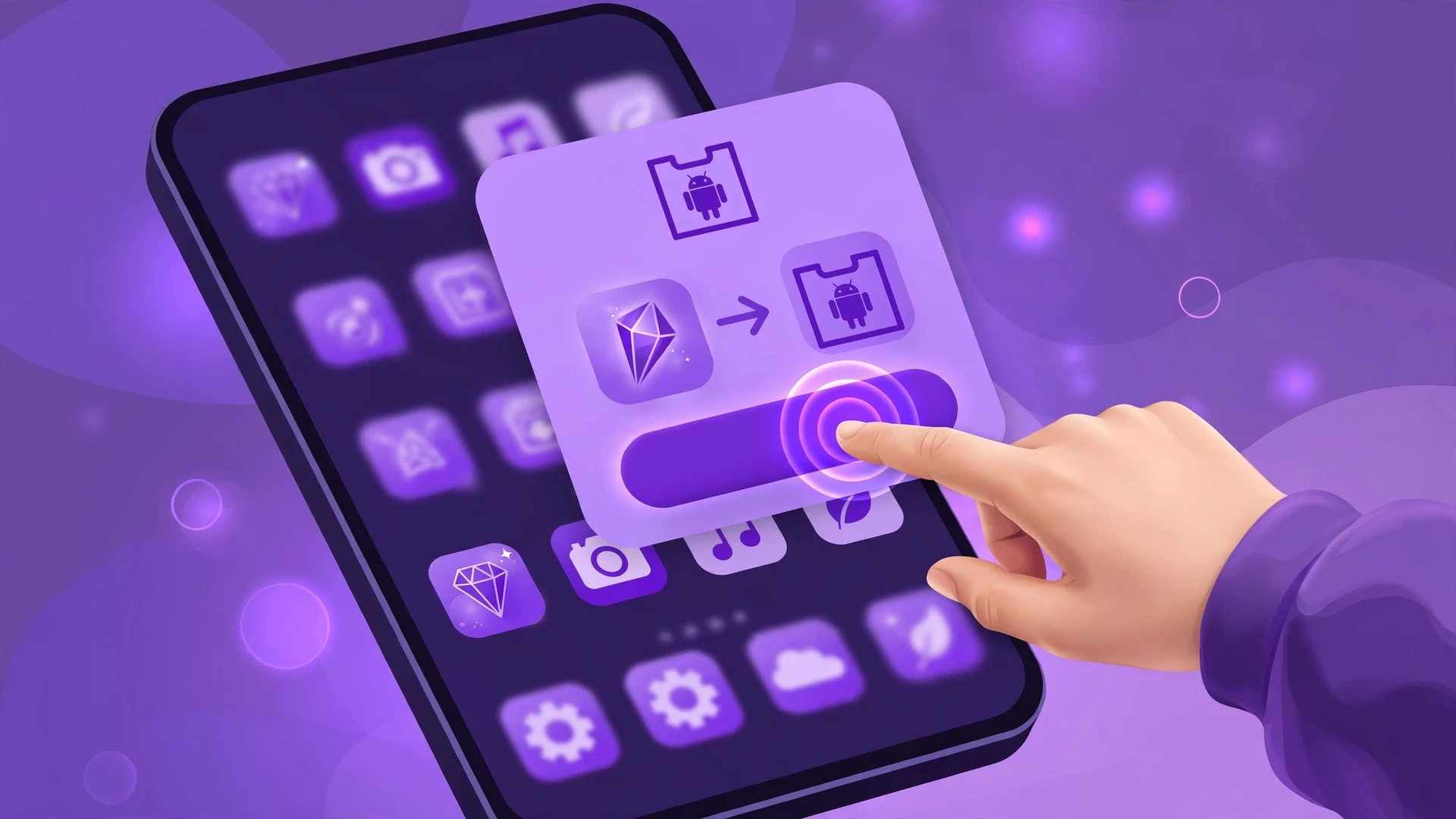
The PC build is portable, so how to update gacha nebula without losing data on a computer comes down to the separate-folder method. Export your character codes first, exactly as on Android. Then download the new Windows ZIP from the official itch.io page and extract it into a separate new folder, leaving your old folder completely untouched. Launch Gacha Nebula.exe from the new folder, confirm your characters import correctly, and only then delete the old folder.
Never overwrite your only copy in place. If the new archive turns out to be corrupt, the old folder is your instant rollback. The full PC workflow, including SmartScreen handling and shortcuts, is in our native PC guide. There is no native build for Mac or Linux, so Mac players update through their emulator setup instead; our Mac and Linux guide covers that route.
Back Up Your OCs First: Export Character Codes
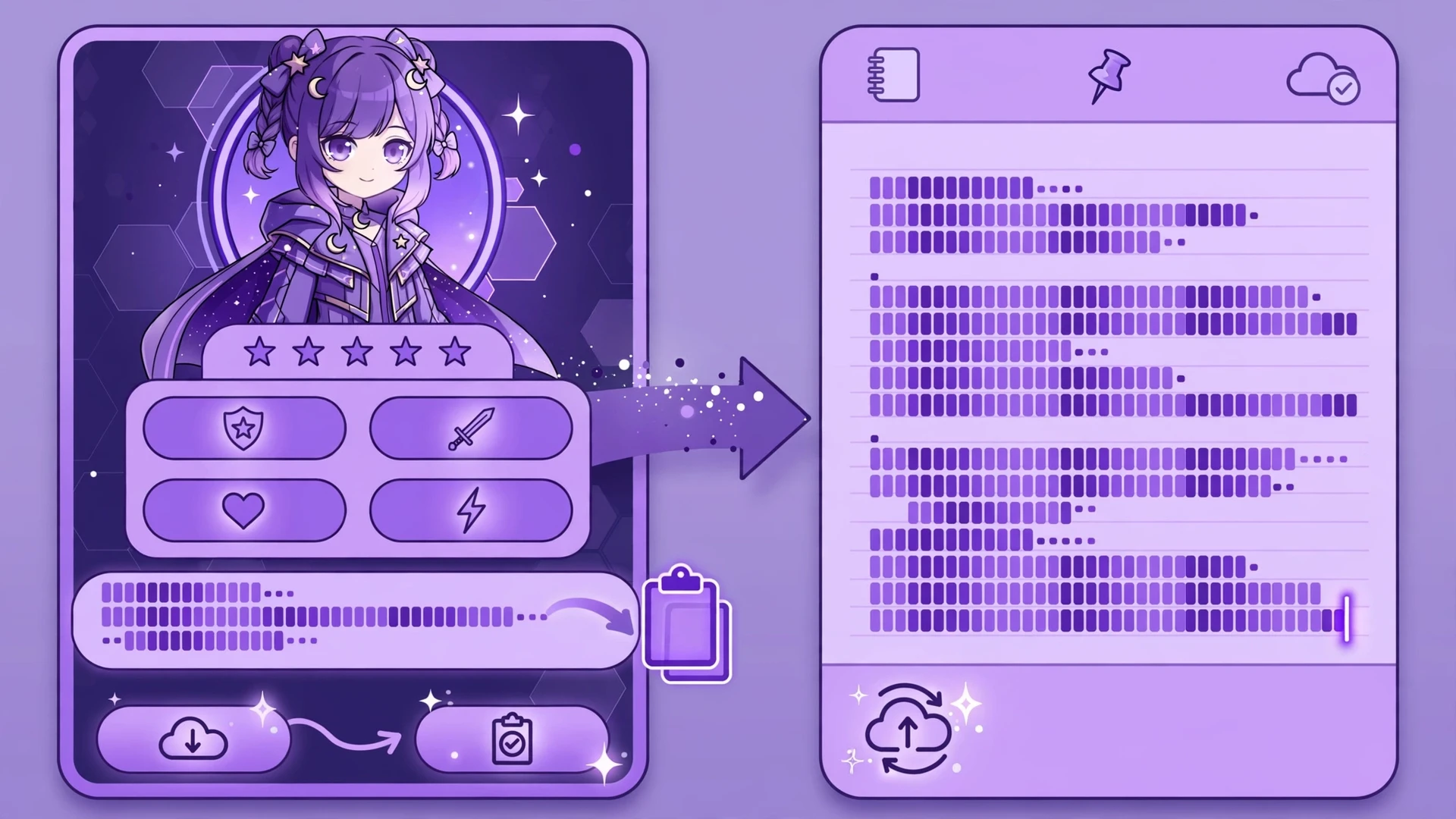
Export codes are your real safety net, and they are the quiet second half of how to update gacha nebula without losing data. They turn each OC into a long text code you can store anywhere, and importing that code rebuilds the character on any device or version. Here is the exact process.
Step 1: Open the Profile screen
Launch Gacha Nebula and tap the Profile button to open your character's profile page.
Step 2: Export the offline code
Tap Export and copy the long offline character code. This code works without any account and has no level requirement, so it is the one to use for backups. (The game also offers an online code, but community reports note it stays locked until the profile reaches level 5, so do not rely on it for a quick pre-update backup.)
Step 3: Store the code somewhere safe
Paste the code into a notes app, a cloud-synced document, or a plain text file, and label it with the character's name and the date. Keep codes for every OC you care about. Remember that Gacha Nebula has no cloud save: everything is stored locally on your device, so these codes are the only backup that survives a lost phone, a factory reset, or a botched reinstall.
Step 4: Test one import
After updating, import one code through Profile then Import to confirm the round trip works. If the import succeeds, your backup system is proven and every future update becomes stress-free.
After Updating: Fix Undefined Slots
Seeing undefined in your new character slots right after an update looks alarming, but it is a known cosmetic quirk, not data loss. The Mega Update video description addresses it directly: after updating, close the app completely and reopen it so the new extra slots initialize, and if they still show as undefined, apply a preset to a slot and it returns to normal.
So the fix is three taps: fully close the app (swipe it away from recent apps, do not just minimize), reopen it, and load any preset into the undefined slot. Your existing OCs are untouched throughout this. Do not reinstall or clear data to fix undefined slots; that trades a harmless display quirk for a real chance of wiping your characters, which is the opposite of how to update gacha nebula without losing data.
When Data Loss Actually Happens
Not every scare is real, but some situations genuinely destroy data. This table is the reality check behind how to update gacha nebula without losing data, separating harmless quirks from true disasters so you know exactly where you stand.
| What happened | What it means | Can you recover? |
|---|---|---|
| Installed new APK over the old app | Normal update; data is preserved | Nothing to recover; you are safe |
| New slots show undefined after update | Cosmetic quirk from the update | Yes: close and reopen the app, then apply a preset |
| Uninstalled the old app before updating | Local app data was deleted with it | Only if you exported character codes beforehand |
| Cleared app data or cache aggressively | Saved characters may be wiped | Only with exported codes |
| Installed a mirror APK with a different signature | Update fails or replaces the app | Only with exported codes; start over from the official page |
| Phone lost, stolen, or factory reset | Local data is gone with the device | Only with exported codes stored off-device |
| Fake update popup from a third-party site | Not a real update; possible malware | Uninstall it; your data in the real app is unaffected |
The pattern is obvious: exported character codes are the single thing that turns every disaster row into a recoverable one. Two minutes of exporting before an update buys you total peace of mind.
What NOT to Do When Updating
These are the moves that cause the horror stories. Every item below breaks the safe method for how to update gacha nebula without losing data, so avoid all of them:
- Do not uninstall the old version first. This is the number one cause of OC loss, and the creator explicitly says it is unnecessary.
- Do not clear app data to fix a glitch. Clearing data wipes the same local storage your OCs live in. Fix undefined slots with the close-and-reopen method instead.
- Do not install update APKs from mirror sites. A different signature or package name can break the install-over update or replace your data. The creator's page is the only safe source.
- Do not trust fake update popups. Gacha Nebula has no in-app updater. Any popup promising an update inside a browser or a third-party app is not from the creator.
- Do not switch between 32-bit and 64-bit builds casually. If your current build works, update within the same architecture. If you must switch, export every code first.
- Do not overwrite your only PC folder in place. Extract the new Windows ZIP into a fresh folder and keep the old one until the new build is verified.
Frequently Asked Questions
Will I lose my characters when I update Gacha Nebula?
No, not if you update correctly. Install the new APK directly over your existing app without uninstalling anything, and your OCs and saved data are preserved. Data loss happens when people uninstall first or clear app data, not from the update itself.
Do I need to uninstall the old version before updating?
No, and you should not. The creator's own install instructions say you can install a newer version into the older one with no backup needed. Uninstalling first deletes the local storage where your characters live.
Does Gacha Nebula update automatically?
No. The creator confirms that itch.io does not auto-update the game on Android, and there is no in-app updater. You download each new build manually from the official itch.io page. Watch the Noxula Discord, the creator's YouTube channel, and itch.io devlogs for update news.
Why do new character slots show undefined after updating?
It is a known cosmetic quirk, not data loss. Fully close the app and reopen it so the new slots initialize. If a slot still shows as undefined, apply any preset to it and it returns to normal. Never reinstall to fix this.
How do I back up my OCs before updating?
Open a character's Profile, tap Export, and copy the long offline character code. Paste it into a notes app or cloud document with the character's name and date. Repeat for every OC you care about, since the game has no cloud save and everything is stored locally.
Can I transfer my OCs from an old version to the new version?
Yes, two ways. Installing the new APK over the old app carries your data across automatically. Alternatively, export each character's code before updating and import the codes after, which also works across devices and between Android and PC.
What happens if I already uninstalled the old version?
The local data is gone with the app, and reinstalling will not bring it back. Your only recovery path is importing character codes you exported before uninstalling. This is why exporting codes before any update is the golden habit.
How do I update Gacha Nebula on PC without losing characters?
Export your character codes first. Download the new Windows ZIP from the official itch.io page and extract it into a separate new folder, keeping the old folder untouched. Launch the new build, verify your characters, and only then delete the old folder.
Conclusion
Updating safely comes down to two habits: install the new build over the old one, and export your character codes first. The creator designed the update path to preserve your data, and the community's horror stories trace back to uninstalling first or trusting mirror builds. With those two habits, no update can touch your OCs.
So before your next update, spend two minutes exporting your codes, grab the new build from the official itch.io page, and install it over your current app with confidence. Now that you know how to update gacha nebula without losing data, every future release becomes something to look forward to instead of fear.
Start from the Gacha Nebula homepage to find every guide and download on this site.