 Gacha Nebula
Gacha Life 2 for PC: Windows Download & Play Guide
Want gacha life 2 for pc? Good news: you can play it on a Windows computer today, and you have three legitimate ways to do it. The bad news is that most guides online are outdated or push you toward shady downloads. This 2026 guide compares the official native Windows build, Google Play Games on PC, and Android emulators side by side, with exact steps, real system requirements, and an honest answer about which method fits you. No fake download buttons, no malware risks, just the facts.
Quick answer: Yes, Gacha Life 2 runs on Windows PCs through three official routes: Lunime's native PC build, Google Play Games on PC, or an Android emulator like BlueStacks. Google Play Games gives you the full mobile experience with every feature; the native build is simplest but lacks the Gacha Simulator and character import/export.
Can You Play Gacha Life 2 on PC?
Yes. Lunime released Gacha Life 2 for Android and iOS first, but PC players were not left out. Pocket Tactics confirms the game is available for Windows computers through Lunime's official itch.io page, and Google's own Play Store listing shows an Install on Windows option powered by Google Play Games on PC. On top of those two official routes, any reputable Android emulator runs the mobile version fine.
What confuses people is that these three routes are not identical. One of them (the native build) is missing two major features. Another (Google Play Games) needs a fairly modern PC. The third (emulators) gives you everything but comes with the usual emulator overhead. Pick the wrong one and you will either miss features you wanted or install software your PC did not need. Let us fix that.
Method 1: The Official Native Windows Build
Lunime publishes a native PC client on its official itch.io page. You download a ZIP, extract it, and run the game directly on Windows. No emulator, no Google account, no extra layers.
How to download it
- Go to Lunime's official itch.io page for Gacha Life 2.
- Click Download and choose the Windows build.
- Extract the ZIP with Windows' built-in extractor or a tool like 7-Zip.
- Open the folder and launch the game executable.
- If Windows SmartScreen shows a warning, that is normal for indie downloads; verify you are on Lunime's real page before proceeding.
Pros and cons
The big advantage is simplicity and safety. It is the official release, so there are no invasive ads, no hidden software, and no emulator eating your RAM in the background. Character customization, color sliders, poses, and Studio Mode all work.
The catch, reported by AirDroid's comparison, is that the native PC version does not include the Gacha Simulator or the import/export features. That means no pulling other players' preset characters and no sharing your OCs with the community from this build. If those social features matter to you, this is not the right method. For a deeper look at everything the game offers, see our complete Gacha Life 2 guide.
Method 2: Google Play Games on PC
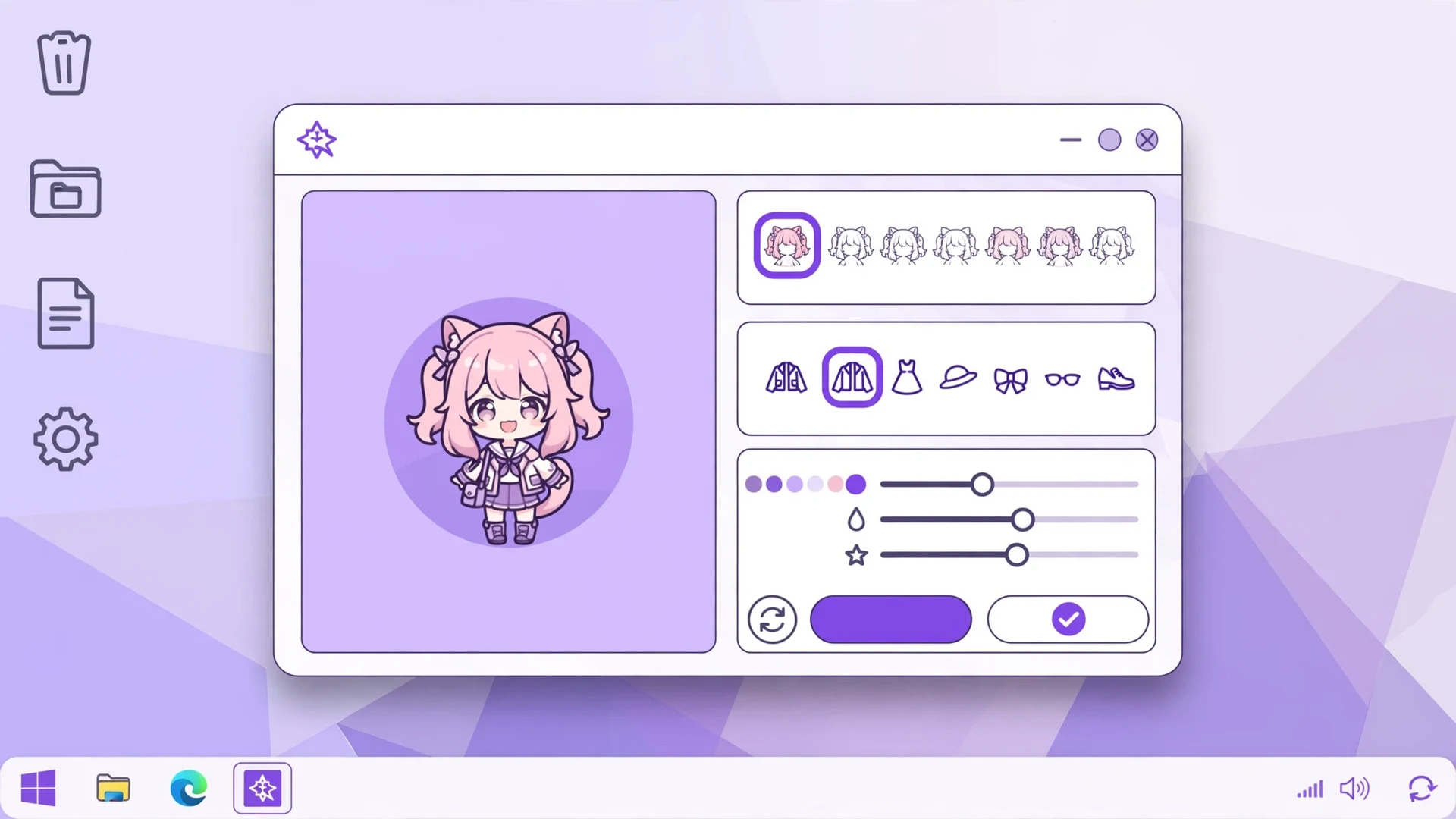
Google Play Games on PC is Google's official platform for running Android games on Windows. The Play Store listing for Gacha Life 2 explicitly offers an Install on Windows option through it, and this is the method Google itself wants you to use.
Why it is the best all-rounder
Unlike the native build, Google Play Games runs the actual mobile version, so you get the full suite: Gacha Simulator, character import and export, and every social feature. Because it is an official Google product, the experience is more polished and stable than third-party emulators, and it syncs with your Google account across devices.
System requirements
This is the part to check before you start. Per AirDroid's rundown of Google's requirements:
- OS: Windows 10 (version 2004) or later
- Storage: SSD with at least 10 GB of free space
- RAM: 8 GB or more
- CPU: 4 physical cores
- GPU: Intel UHD Graphics 630 or equivalent
If your PC meets these, you are set. If it does not, skip to the emulator section, which is more forgiving on older hardware.
How to install it
- Download Google Play Games for Windows from Google's official site.
- Install it and sign in with your Google account.
- Search for Gacha Life 2 in the Play Games library.
- Click Install, then launch the game from the Play Games app.
- Adjust settings like resolution and frame rate to taste; full-screen mode is one click or the F11 key.
Method 3: Android Emulators (BlueStacks, LDPlayer, Nox)
Third-party Android emulators like BlueStacks, LDPlayer, and NoxPlayer run the mobile version of Gacha Life 2 in a virtual Android environment on your PC. This is the oldest method and still a solid one, especially for content creators.
Why creators like emulators
Emulators give you the full mobile feature set, including the Gacha Simulator and import/export, plus tools the other methods lack: key mapping for keyboard control, macro recording, multi-instance support, and easy screen recording for Gacha videos. If you make Gacha content for YouTube or TikTok, an emulator doubles as your recording studio.
How to install it
- Download BlueStacks (or LDPlayer/NoxPlayer) from its official website.
- Run the installer and complete the setup.
- Launch the emulator and sign in with a Google account.
- Open the Play Store inside the emulator, search for Gacha Life 2, and tap Install.
- Launch the game from the emulator's home screen and set up key mapping if you want keyboard controls.
The trade-off
Emulators are heavier than the other two options. They reserve a chunk of your RAM and CPU for the virtual Android system, so weak PCs will feel it. They also come with more bundled software and occasional ads in the free tiers. Download only from the emulator's official site, never from a random mirror.
Comparison: Which PC Method Should You Choose?
| Feature | Native PC Build | Google Play Games | Emulators |
|---|---|---|---|
| Official source | Lunime itch.io | Third-party | |
| Gacha Simulator | No | Yes | Yes |
| Character import/export | No | Yes | Yes |
| Studio Mode | Yes | Yes | Yes |
| Character customization | Yes | Yes | Yes |
| Performance demand | Lowest | Medium | Highest |
| Keyboard/mouse mapping | Basic | Built-in | Advanced |
| Ads or bundled software | None | None | Some in free tiers |
| Best for | Simple, safe designing | Full experience, modern PCs | Creators, older PCs |
Short version: want the complete game on a decent PC? Use Google Play Games. Want the lightest, cleanest install and do not care about the Gacha Simulator? Use the native build. Making videos or running an older machine? Use an emulator.
Moving Characters Between Mobile and PC
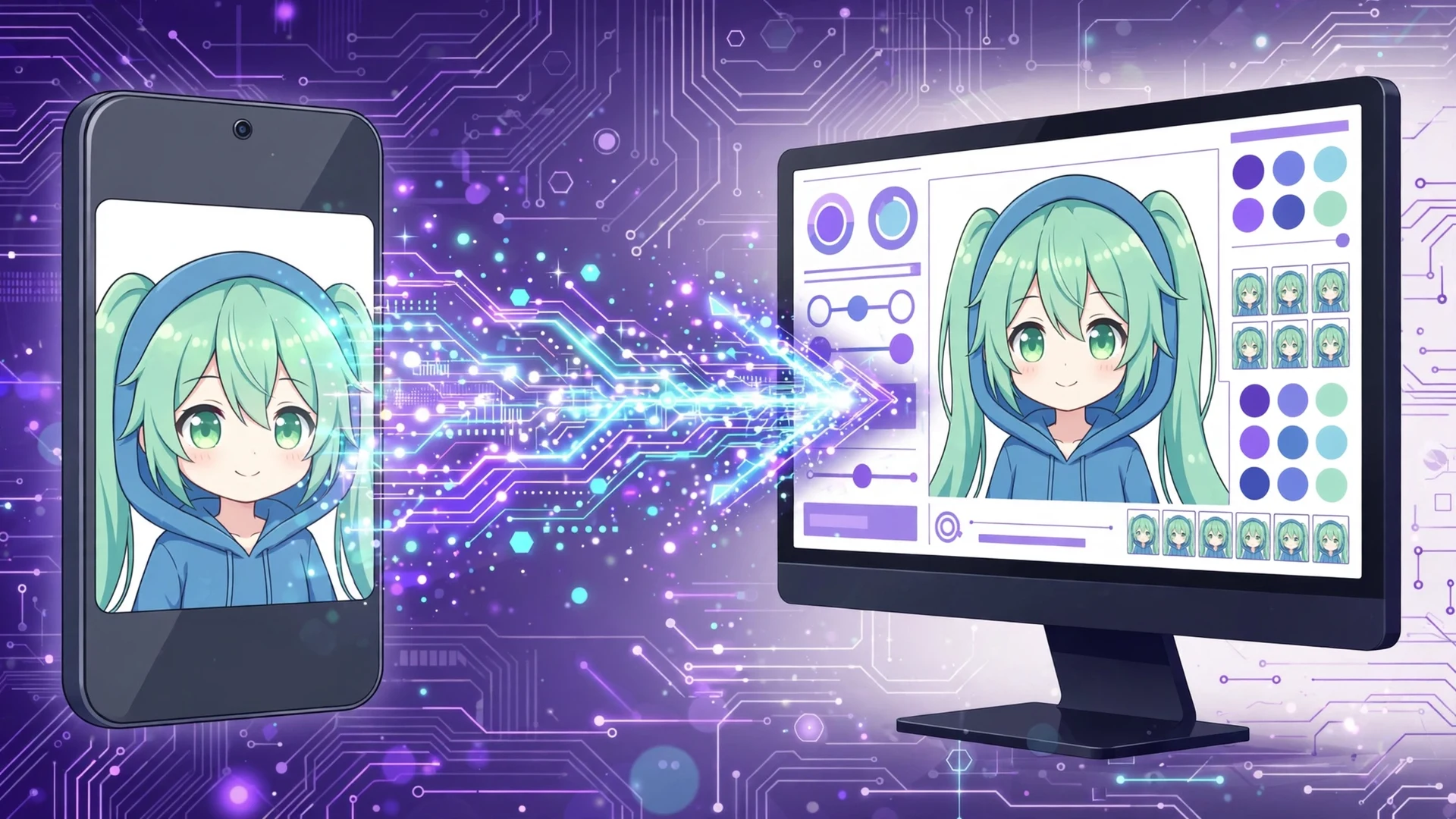
Here is a question every PC player asks: do my phone characters carry over? There is no cloud account sync in Gacha Life 2, so the answer is the export code system. On your phone, export each OC to get its code, then on the PC version (Google Play Games or emulator build, since the native build lacks import), use the import function and paste the code. Your characters transfer exactly, poses included.
Do this before you invest hours designing on one device. Export codes are also your backup against data loss, and our Gacha Life 2 codes guide explains the full import and export workflow step by step.
Troubleshooting Common PC Problems
- Game lags on PC: set the in-game quality to Low, close background apps, and in emulators reduce the allocated CPU cores to what your system can spare.
- Google Play Games will not install: check the requirements list above; the most common blocker is Hyper-V/virtualization being disabled in BIOS or an HDD instead of an SSD.
- Emulator runs slowly: enable virtualization (VT) in your BIOS, give the emulator at least 4 GB of RAM, and switch its graphics mode between DirectX and OpenGL to see which runs better.
- Native build will not launch: make sure the ZIP was fully extracted (do not run it from inside the archive) and that your Windows is 64-bit.
- SmartScreen warning: expected for indie executables; only proceed if you downloaded from Lunime's genuine itch.io page.
Frequently Asked Questions
Is there an official Gacha Life 2 PC version?
Lunime publishes a native Windows build on its official itch.io page, and Google offers the mobile version on Windows through Google Play Games on PC.
Is Gacha Life 2 for PC free?
All three methods are free: the native build, Google Play Games, and emulators like BlueStacks cost nothing for the game itself.
Which PC method has the Gacha Simulator?
Google Play Games on PC and Android emulators include the Gacha Simulator, while the native PC build does not.
Can I transfer my characters from phone to PC?
Yes, using export codes: export each OC on your phone, then import the code in the PC version that supports importing.
What are the minimum PC requirements?
For Google Play Games: Windows 10 v2004, an SSD with 10 GB free, 8 GB RAM, a 4-core CPU, and Intel UHD 630 graphics or better.
Is it safe to download Gacha Life 2 for PC?
Stick to official sources (Lunime's itch.io, Google Play Games, or an emulator's official site) and avoid random APK and EXE mirrors.
Does the PC version support keyboard controls?
Google Play Games has built-in mouse and keyboard support, and emulators offer advanced key mapping; the native build has basic support.
Can I play without downloading anything?
Cloud services like now.gg let you play in a browser without installing, though performance depends on your internet connection.
Conclusion
Gacha life 2 for pc is not a single download but a choice of three paths, and now you know exactly what each one gives up. The native build is the cleanest way to design characters on a big screen. Google Play Games on PC is the complete mobile experience with Google's polish behind it. Emulators remain the creator's toolkit with recording-friendly extras.
Pick the method that matches your PC and your goals, grab the game only from official sources, and move your characters over with export codes before you start building. Explore more on the Gacha Nebula APK Mod homepage.