 Gacha Nebula
 Customization: Build Better OCs in 2026
Gacha Nebula customization is the reason most players install the mod in the first place. The character creator takes everything Gacha Club offers and stretches it: more items, deeper layers, finer color control, and tools like the Adjust system that let you place accessories where the original game never allowed. If you have ever stared at the editor for twenty minutes and still ended up with a character that looks unfinished, this Gacha Nebula customization guide is for you.
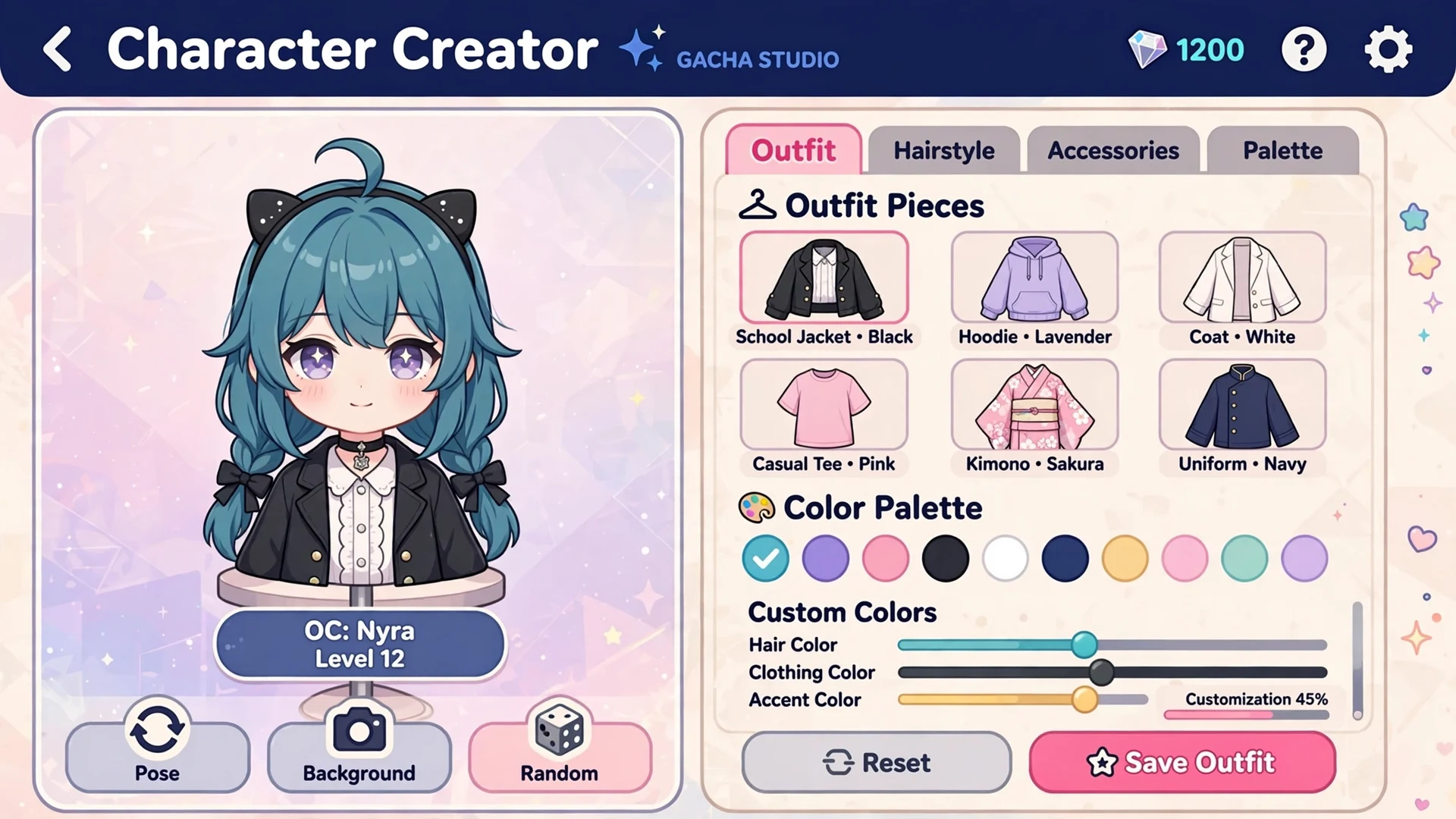
Here is the honest truth. Great OCs are not built by owning more items. They are built with a small set of repeatable decisions: one clear concept, one hero piece, a disciplined palette, and smart layering. This Gacha Nebula customization guide walks through the whole Gacha Nebula creator tab by tab, then teaches the design systems that separate decent characters from the ones people screenshot and share. New here? Grab a clean copy from a trusted source and install the APK safely first, because a corrupted install can make the editor itself glitch.
Quick answer: Gacha Nebula customization centers on an expanded character creator with 1,500+ unlocked items, a layering system (including feet and head layers), an Adjust tool for repositioning accessories, 80+ extra colors with gradients, and 450+ extra OC slots. The fastest path to better OCs: pick one concept, one hero outfit piece, a 3-color palette, and use the Adjust tool to refine placement.
Gacha Nebula Customization Starts With a Concept
Most players open the creator, scroll the item list, and start clicking. An hour later they have a character wearing six hats, three capes, and a color scheme that fights itself. Sound familiar? The fix costs nothing and takes five minutes, and it is the most overlooked step in Gacha Nebula customization: decide who the character is before you touch a single item.
What most people miss is that every strong OC answers three questions. What is their role (student, knight, idol, traveler)? What is their mood (soft, edgy, playful, mysterious)? And what is the one visual idea a stranger would remember them by? Write the answers down, even as a phone note. When every later choice points back to those answers, outfits almost design themselves.
Why concept-first beats asset-first
Asset-first designing optimizes for novelty: each new item feels exciting, so you keep adding. Concept-first designing optimizes for coherence: each item has to earn its place. The second approach wins because viewers read characters as whole silhouettes first and details second. A simple outfit that matches its concept always beats a busy outfit that matches nothing. And in content made for TikTok or YouTube, readable characters get more watch time than cluttered ones.
A 5-minute OC concept worksheet
Grab any notes app and answer these before your next build:
- Role: one phrase (example: sleepy star mage)
- Mood: one word (example: cozy)
- Signature: the one item or color people remember (example: oversized moon earrings)
- Palette: three colors max (example: deep purple, silver, soft pink)
- Story beat: where this character appears (example: night market scenes)
If an item does not serve at least one of those lines, it does not go on the character. Brutal, but it works.
The Character Creator, Tab by Tab
The creator organizes everything into tabs: Presets, Body, Head, Clothes, Props, Chat, Pet, Objects, and Profile. Compared to Gacha Club, Nebula adds new categories and far more pages inside each one, including second hats, second tails, second capes, second wings, extra face accessories, and side hair options. Knowing where things live is basic Gacha Nebula customization literacy, and it saves you from the endless scroll.
| Tab | What it controls | Pro tip |
|---|---|---|
| Presets | Full starter outfits | Use as a base, then strip it down to your concept |
| Body | Height, head size, skin, poses | Set proportions before styling, or outfits will look off |
| Head | Face, eyes, hair, blush, eyeshadow | Try pupil masking for expressive custom eyes |
| Clothes | Tops, bottoms, shoes, socks, capes | Check layer order here before adding accessories |
| Props | Hats, glasses, weapons, wings, tails | One hero prop beats five small ones |
| Chat | Dialogue bubbles and text | Match bubble colors to your palette |
| Pet | Companion creatures | Pets can talk, so give yours a personality |
| Objects | Scene items and extras | Great for themed screenshots |
| Profile | Name, age, traits, backstory | Fill this in, it makes OCs feel real |
Presets: the fastest starting point
Presets are complete outfits, and they are the best shortcut in the editor. Pick the preset closest to your concept, then remove everything that does not serve it. Editing down is faster and cleaner than building up from a blank character. The mod ships with new Nebula-made presets too, which show off the new assets better than the old Club ones.
Face, hair, and eyes: where personality lives
Viewers look at the face first, so spend your time there. Nebula's eye system is a genuine upgrade: pupil masking keeps custom pupils inside the eye shape instead of clipping, and separate adjustments for left and right eyeballs let you build asymmetrical expressions. Eye highlights, changeable sclera color, and colorable face shadows add the kind of depth that makes a character look alive in close-up screenshots.
For hair, remember the new categories: side hair, second back hair, and extra ponytail slots mean you can layer styles that were impossible before. But layered hair only works when every piece shares the same color treatment, or it reads as a wig malfunction. Pick your palette first, then dress the hair. That order is a small Gacha Nebula customization habit with outsized payoff.
Gacha Nebula Customization: Build Outfits Like a Designer
In Gacha Nebula customization, outfit building is a system, not luck. Professional character designers follow the same loop every time: silhouette, hero piece, palette, details. Run your OCs through that loop and your designs will level up fast, even with zero art training.
The one hero piece rule
Every memorable outfit has one item that carries it: a detailed jacket, dramatic wings, an unusual hat, a statement cape. Pick that piece first and let everything else support it. When two items fight for attention, the outfit loses. This is the single biggest difference between OCs that look designed and OCs that look like a wardrobe exploded.
Silhouette first, details second
Squint at your character. The overall shape should read clearly: tall and sharp, small and round, wide and dramatic. If the silhouette is a blob, no accessory will save it. Fix shape with big items (coats, capes, hair volume, boots) before touching small ones (jewelry, belts, gloves). And check the silhouette at thumbnail size, because that is how most people will first see your character on social feeds.
Themed look frameworks
Stuck for ideas? Start from a theme and let the framework fill in the blanks. Each theme below pairs a hero piece with a disciplined palette, which is exactly how you avoid the rainbow-vomit trap.
| Theme | Hero piece | Palette | Vibe |
|---|---|---|---|
| Soft aesthetic | Oversized cardigan | Cream, blush, lavender | Cozy and gentle |
| Star mage | Constellation cape | Deep purple, silver, white | Mystical and calm |
| Street techwear | Utility jacket | Black, grey, one neon accent | Sharp and modern |
| Forest fantasy | Layered cloak | Moss green, brown, gold | Earthy and wild |
| Idol pop | Statement headpiece | White plus two bright colors | Energetic and bold |
Once the outfit works in the creator, take it into Studio Mode and pose it against a background. Outfits that look great on the blank editor canvas sometimes clash with busy scenes, and it is cheaper to learn that now than after you have built a whole comic.
Master the Adjust Tool and Layers
If the item library is the muscle of Gacha Nebula customization, the Adjust tool is its brain. Almost every accessory in the mod can be moved, scaled, and rotated freely. Hats can sit tilted. Glasses can hang from a collar. Wings can shrink to shoulder decorations. The players who learn this tool produce OCs that look genuinely custom, because nobody else placed their items in exactly those spots.
What the Adjust tool actually does
Select any adjustable item and you get position, scale, and rotation controls. Small moves make big differences: nudging a hat two pixels can fix a floating look, and rotating a scarf slightly sells the idea that it has weight. Work zoomed in for placement, then zoom out to check the whole character. This zoom rhythm is one of those quiet Gacha Nebula customization skills that separates clean work from messy work. And save before big experiments, because it is easy to lose a perfect placement while chasing a better one.
Feet layers, head layers, and the 4th sock position
Nebula adds dedicated layer controls that Club never had. You can reorder jacket and skirt layers so a skirt sits above or below a coat, and the socks get a 4th position that places them above everything else. Feet and head layers let you stack items with real depth instead of the flat look of the original game. When two items overlap wrong, do not delete one. Open the layer order first. Nine times out of ten, the fix is a layer swap, not a removal.
Layering mistakes that ruin good outfits
- Stacking without purpose: every overlapping item should add shape or story, or it is clutter
- Ignoring the layer order: capes eating hair and sleeves swallowing gloves are layer problems
- Heavy scenes on weak phones: dozens of stacked items per character can lag or even crash low-end devices, so keep hero characters detailed and background characters simple (more in our crash fix guide)
Fine adjustments are much easier with a mouse, so consider building complex OCs on a bigger screen. Our guides to playing on Mac and running Nebula on PC both cover setups that make precision editing far less fiddly.
Gacha Nebula Customization: Color Like a Pro
Color is where beginners reveal themselves in Gacha Nebula customization. Nebula hands you 80 extra colors, gradient options on many items, and colorable shadows, which is wonderful and dangerous. More colors do not make better OCs. Fewer, better-chosen colors do.
The 3-color palette rule
Pick three colors: a dominant (60% of the outfit), a secondary (30%), and an accent (10%). The accent is your spice. One bright color against a calm base looks intentional. Five bright colors against a bright base looks like an accident. Nebula's soft palettes are genuinely good starting points if choosing colors stresses you out. Steal a palette from a screenshot you love, then make it yours.
Gradients, colorable shadows, and the new colors
Many items support gradient coloring, which blends two colors across the item for a premium look. Use gradients on big surfaces (capes, hair, dresses) and flat colors on small details, or the whole character turns to soup. Colorable shadows let you tint the shading itself, which is how advanced creators get that cohesive, art-directed feel. And here is a small trick: repeat your accent color in at least two places (eyes and shoes, hair streak and gloves) so the design feels connected.
Edit in Display Color mode
When an outfit gets complicated, switch on Display Color mode to strip colors while you edit. It sounds backwards, but removing color lets you judge shape, balance, and layering without the distraction. Get the design right in greyscale, then paint it. If it works without color, it will sing with color.
Slots, Presets, and Never Losing an OC
Gacha Nebula customization gives you over 450 extra character slots, which sounds like infinite space until your third story arc. A little organization now saves real grief later, because a lost main OC is the kind of heartbreak the community talks about for weeks.
Organize a growing roster
Group slots by project, not by creation date. Keep your main cast in the first slots, variants and alternate outfits next, and background characters at the end. Name every OC in the Profile tab the moment you create them. Future you, scrolling through 200 slots at 2am looking for one specific villain, will be grateful.
Back up before you update
Updates can reshuffle assets, and while Nebula is stable, mods can glitch during version jumps. Before any update, export your most important characters with character import and export codes and save those codes somewhere outside the app, like a notes file or a message to yourself. Our guide to updating without losing data walks through the full backup routine, and the general update guide covers the process step by step.
Fix Common Customization Glitches
Even perfect OCs can look broken after an update or a bad install, which is why a little Gacha Nebula customization troubleshooting knowledge belongs in every creator's toolkit. Here are the ones the community hits most.
Colors look wrong after an update
This is version drift: the new build changed how a color or gradient renders, so your saved OC loads with shifted tones. First, confirm you are on the real latest build with our 1.7.0.2 version guide, because fake mirrors relabel old builds. Then open the OC, re-pick the affected colors from the new palette, and re-save. It takes two minutes and it fixes the vast majority of cases.
Items show as undefined or missing
Undefined slots usually mean the app updated but did not reload its asset list cleanly. Close the app completely and reopen it, then apply any preset to refresh the slot. If items are still missing, you may be running an outdated build, in which case our old versions guide helps you identify what you have and move to a current one. And if the app will not behave at all, check whether your copy is genuine, since tampered APKs are a common source of broken editors. When in doubt, verify with our safety guide.
OC Design Principles That Separate Good From Great
Technique gets you to good in Gacha Nebula customization. Principles get you to great. These are the habits that show up in every OC people remember.
Design for the screenshot, not the editor
You build in the editor, but everyone else meets your character in screenshots, thumbnails, and video frames, usually small. Test every OC at thumbnail size. If the design turns to mush, simplify: stronger silhouette, fewer colors, one clear focal point. The best Gacha Nebula customization artists design backwards from the final image.
Keep characters consistent across scenes
A main OC should be recognizable in every scene without a label. Lock the core trio (hairstyle, palette, hero piece) and only vary the rest. Save scene-ready variants as separate slots instead of editing your master copy, because one accidental overwrite can erase hours of tuning. Consistency is what turns a character into a brand.
Credit and OC-sharing etiquette
Nebula exists because asset creators shared their work, and the community runs on credit. If someone's preset or design inspires your OC, credit them when you post it. Never re-upload another creator's character as your own, and never share someone's export code without permission. Good etiquette is not just polite, it keeps the creators making the assets you love.
Conclusion
Gacha Nebula customization rewards players who think like designers: concept first, one hero piece, a disciplined 3-color palette, and the Adjust tool doing the quiet work of perfect placement. You do not need every item in the library. You need a system, a backup habit, and the patience to simplify. Build your next OC with this guide open beside you, export a backup code when it is done, and then go make something worth screenshotting. For downloads, troubleshooting, and deeper creator workflows, the main Gacha Nebula download page ties the whole site together.
Frequently Asked Questions
How do I customize characters in Gacha Nebula?
Open any character slot and work through the creator tabs: Presets, Body, Head, Clothes, Props, Chat, Pet, Objects, and Profile. Pick a preset close to your idea, adjust the face and hair, build the outfit around one hero piece, set a 3-color palette, then use the Adjust tool to fine-tune accessory placement before saving.
How many OC slots does Gacha Nebula have?
Gacha Nebula adds over 450 extra character slots on top of the base game's roster, giving you far more room than the original Gacha Club. Organize them by project rather than creation date, name every OC in the Profile tab, and keep your main cast in the earliest slots so they are easy to find.
What does the Adjust tool do in Gacha Nebula?
The Adjust tool lets you freely move, scale, and rotate almost any accessory on your character. You can tilt hats, shrink wings into shoulder decorations, or hang glasses from a collar. Small nudges fix floating items and add realism, and it is the main reason Nebula OCs can look genuinely custom.
How do I make my OC's outfit colors match?
Use the 3-color rule: one dominant color for about 60% of the outfit, a secondary for 30%, and one accent for 10%. Repeat the accent in at least two places, like eyes and shoes, so the design feels connected. Nebula's soft palettes are excellent starting points, and gradients work best on large surfaces only.
Why do my OC's colors look wrong after updating Gacha Nebula?
This is version drift: the new build renders some colors or gradients differently than the old one. Confirm you are on the genuine latest build, then open the affected OC, re-pick the shifted colors from the new palette, and re-save. Back up your characters with export codes before every update to avoid surprises.
Can I share my Gacha Nebula OC with a friend?
Yes. Use the character export feature to generate an import code, then send that code to your friend, who pastes it into their own game to load your OC. Always save your own backup codes outside the app too. Never share someone else's export code without their permission.
What is the Special tab in Gacha Nebula?
The Special tab holds items that do not fit the standard categories, including unusual accessories and effects you will not find elsewhere in the creator. It is worth browsing when your OC needs one unexpected piece, but treat it like a spice rack: one special item elevates an outfit, five of them bury it.
How do I back up my Gacha Nebula OCs?
Export each important character to an import code and store those codes outside the app, such as in a notes file or a message to yourself. Do this before every update or device switch. Clearing app data or reinstalling without exported codes can permanently erase characters that took hours to build.