 Gacha Nebula
 Lag Fix: 12 Ways to Speed It Up (2026)
Lag is the one thing every Gacha Nebula player on a budget phone knows too well. You open the character creator, swipe through outfits, and everything stutters. Studio Mode turns into a slideshow. And sometimes the dreaded not responding popup shows up right as you finish a scene.
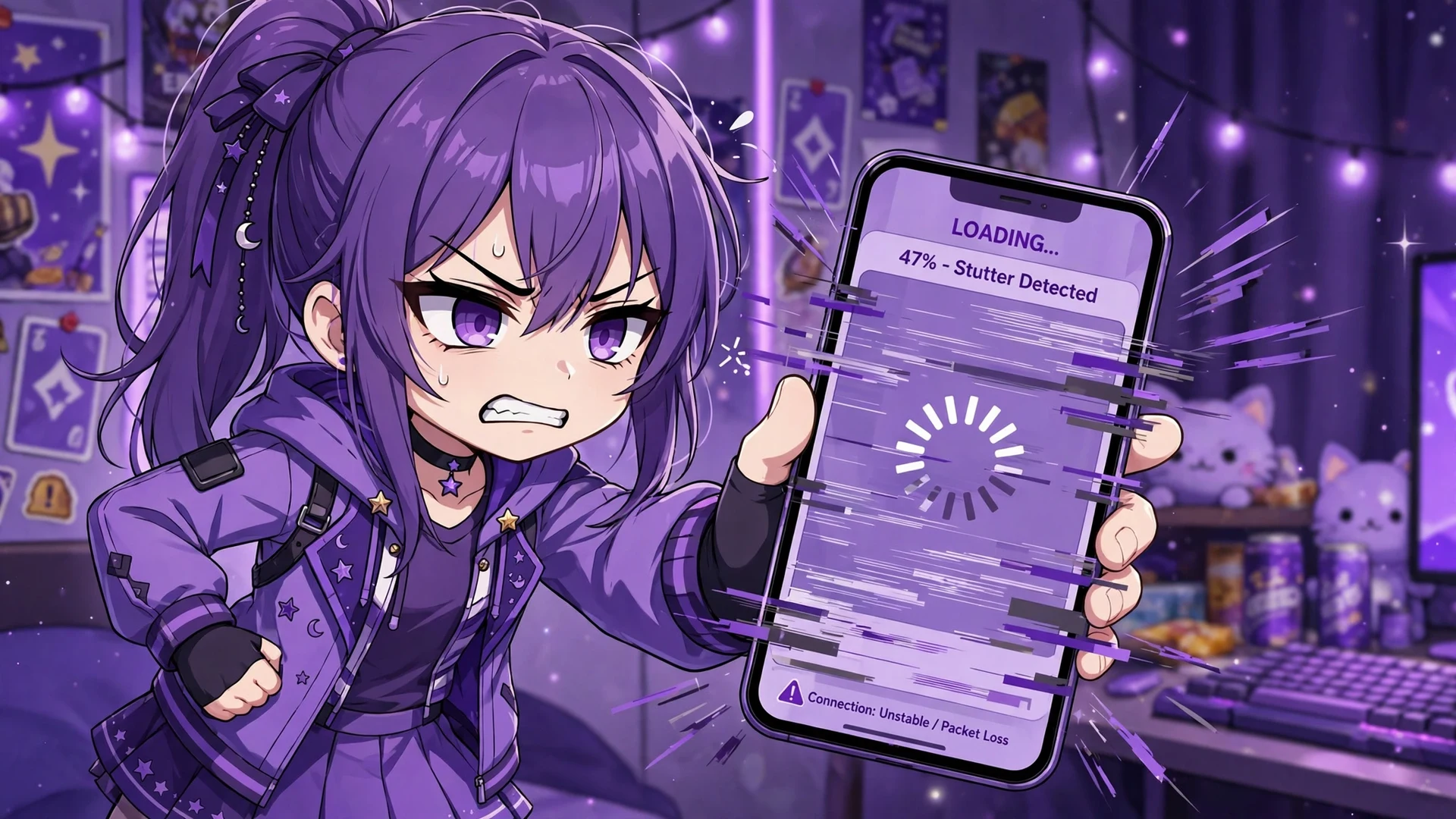
Sound familiar? You are not doing anything wrong, and your phone is not necessarily dying. Gacha Nebula is a fan-made mod of Gacha Club with thousands of extra assets, and all that content has a performance cost. The listed minimum is Android 5.0, but meeting the minimum and running smoothly are two very different things.
This gacha nebula lag fix guide walks you through 12 practical tweaks that actually reduce lag on low-end phones, from two-minute cleanups to settings most players never touch. No booster apps, no sketchy downloads, no magic. Just the stuff that works.
Short answer: Gacha Nebula lags because its huge custom asset library demands more RAM and GPU power than low-end phones have. Reduce the load: clear the app cache, close background apps, lower the in-game quality setting, simplify heavy characters and scenes, install the correct 32-bit or 64-bit build, and keep plenty of free storage.
Why Gacha Nebula Lags on Low-End Phones
Before fixing anything, it helps to understand what you are up against. Most lag guides treat every app the same, but Gacha Nebula has specific reasons for running heavy. Once you see them, every gacha nebula lag fix below makes a lot more sense.
It Is Heavier Than It Looks
Gacha Nebula ships with over 2,000 extra items, backgrounds, and poses layered on top of the Gacha Club base, and the install sits around 421 MB. Every one of those assets has to load into memory when you browse or build. A character with heavily customized outfits and stacked accessories forces your phone to render far more layers than a simple character, and a busy Studio Mode scene with ten characters multiplies that load.
RAM Is the Real Bottleneck
Here is the number that matters most: community sources recommend a minimum of 2 GB of RAM, and even that is the floor, not the comfort zone. On a phone with 2 or 3 GB, the operating system itself eats a big chunk, leaving the game fighting for scraps. Players on 32-bit devices report the worst of it, with the game lagging badly and sometimes closing itself within a minute of opening. More RAM does not guarantee zero lag, but low RAM almost guarantees some.
Storage and Background Apps Pile On
Two quiet culprits make everything worse. First, a nearly full phone slows down all apps because flash storage needs free space to work efficiently. Second, background apps (social media, browsers with dozens of tabs, music streaming) keep sipping RAM while you play. Gacha Nebula does not get to use memory that other apps are already holding.
Gacha Nebula Lag Fix: Quick Wins in 5 Minutes
Start here. These quick wins are the easiest gacha nebula lag fix steps, ordered by impact. Most players feel a difference after the first three, and the whole set takes less time than brewing tea.
| Fix | Time needed | Lag reduction | Effort |
|---|---|---|---|
| Restart the app | 1 minute | High (if lag built up over time) | Trivial |
| Clear the app cache | 2 minutes | Medium to high | Easy |
| Close background apps | 2 minutes | Medium | Easy |
| Free up storage space | 5 minutes | Medium | Easy |
| Restart the phone | 3 minutes | Medium | Trivial |
Start With a Fresh Restart
The simplest gacha nebula lag fix sounds too simple, but there is a real reason it works. Players and even the original game notes report that lag builds up the longer a session runs, and restarting clears it. If your game starts smooth and gets choppy after twenty minutes, you are dealing with this pattern. Fully close the app (swipe it away from recent apps, do not just hit home) and reopen it.
Clear the Cache, Never the Data
Over time the app accumulates temporary files that slow it down. Clearing them is safe and quick:
- Open Settings, then Apps.
- Find Gacha Nebula in the list and tap it.
- Tap Storage, then Clear Cache.
Read that button carefully. Clear Cache removes temporary files and keeps your characters. Clear Data (sometimes labeled Clear Storage) wipes your OCs. Treat this gacha nebula lag fix as regular maintenance, not a one-time chore. If you ever need the nuclear option, back up your characters first so a cleanup never costs you hours of work.
Close Background Apps and Free Storage
Before launching the game, swipe away everything you do not need: browsers, social apps, video apps. Then check your storage under Settings. Aim to keep several gigabytes free. Delete old downloads, clear out blurry photos, move videos to cloud storage. A phone gasping for storage space will stutter in every app, not just this one.
In-Game Tweaks That Actually Reduce Lag
Once the quick wins are done, look inside the game itself. These tweaks lower what your phone has to render, which is where the biggest sustained gains come from.
Turn Down the Quality Setting
This is the single most overlooked gacha nebula lag fix. Like the base game it is built on, Nebula includes an Options menu on the home screen where you can change the quality setting. Dropping it from high to low reduces how much rendering work your phone does, which directly cuts stutter on weak GPUs. It will not look quite as crisp, but a smooth game beats a pretty slideshow.
Lighten Your Heaviest Characters and Scenes
Remember that every stacked accessory is another layer your phone renders. If one particular character slot lags every time you open it, that character is probably overloaded: dozens of layered items, complex gradients, heavy props. Try simplifying your most-used OCs and splitting epic ten-character scenes into smaller ones. Your phone will thank you, and honestly, cleaner designs usually look better anyway.
Phone Settings That Free Up Performance
A few system settings quietly throttle your games, and adjusting them is a gacha nebula lag fix most players never try.
| Setting | Where to find it | What it does |
|---|---|---|
| Battery optimization (set to Unrestricted for the game) | Settings, Apps, Gacha Nebula, Battery | Stops the system from throttling the app to save power |
| Game or performance mode | Settings, Battery or a dedicated Game settings page | Prioritizes CPU and GPU for games on many brands |
| Reduce animations | Settings, Accessibility | Lowers system-wide animation load |
| Auto-sync and background data limits | Settings, Accounts or Data usage | Frees RAM and CPU from background syncing while you play |
Stop Battery Saver From Throttling Your Game
This one catches a lot of people. Battery saver mode slows your processor to extend battery life, which is the exact opposite of what a heavy game needs. Either turn battery saver off while playing or exempt Gacha Nebula specifically: go to Settings, Apps, Gacha Nebula, Battery, and set it to Unrestricted or Not optimized. Your battery will drain a bit faster during sessions, but as a gacha nebula lag fix this one punches above its weight.
Use Game Mode If Your Phone Has One
Many brands (Samsung, Xiaomi, Oppo, Vivo, and others) ship a game mode or game launcher that boosts performance and blocks notifications while you play. If your phone has one, add Gacha Nebula to it. It is a free performance bump with zero downside.
Install the Right Build: 32-Bit vs 64-Bit
This is where a lot of low-end lag secretly comes from. Gacha Nebula comes in two builds, and running the wrong one on your phone causes lag at best and instant crashes at worst. Players on older 32-bit devices report the heaviest lag of all, while the same game runs fine on a 64-bit phone.
If you are not sure which build you installed, our 32-bit vs 64-bit chooser walks you through checking your phone and picking correctly. Grab the matching build from a trusted download source, and while you are at it, make sure you are on the latest version, since newer builds include bug fixes that older ones lack. And if the app will not install at all, that is a different problem with its own install-failure guide.
Match the Build to Your Phone
The rule is simple: 64-bit phones should run the 64-bit build, and older 32-bit phones need the 32-bit build. A 64-bit APK on a 32-bit system is the most common cause of the app closing seconds after opening. Even when it technically runs, a mismatched build wastes the limited resources your phone has. Five minutes spent reinstalling the right build is a gacha nebula lag fix that months of random tweaking may never match.
Emulator Settings for PC and Mac Players
Playing on a computer? Emulators add their own performance layer, and the default settings are usually stingy. This gacha nebula lag fix section is for everyone running the game through an emulator rather than natively.
Open your emulator settings and give the virtual device more resources: bump the CPU cores to at least 4 and the RAM allocation to 4 GB or more if your computer can spare it. Enable virtualization (VT-x on Intel, AMD-V on AMD) in your BIOS or UEFI settings, since emulators run dramatically faster with it on. If your emulator lets you choose a graphics renderer, try switching between the available options, because the best one varies by computer.
On a Mac, check our Mac setup guide for the smoothest configuration, and Windows players should know there is a native Windows version that skips the emulator entirely and usually runs lighter than any emulated setup.
Give Your Emulator More Resources
The single biggest emulator mistake is leaving everything on default. A virtual device given 2 CPU cores and 2 GB of RAM will stutter no matter how powerful your actual computer is, because the game only sees what the emulator gives it. Match the allocation to your hardware: on a modern computer, 4 cores and 4 to 6 GB of RAM for the emulator instance is a comfortable starting point.
When Lag Is Really a Different Problem
Sometimes what feels like lag is actually the early stage of a bigger issue. Knowing which one you have saves you from applying the wrong fixes.
Lag, Freeze, or Crash: Know Which One You Have
Use this quick test. If the game runs but stutters, that is lag, and this guide is for you. If it freezes completely or throws the not responding popup, you are dealing with a stability problem, and our crashing fix guide covers it from symptom to solution. If the app closes within seconds of opening every single time, suspect the wrong APK build or a corrupted download first.
One honest note: persistent lag that suddenly appeared right after an update can be a version bug rather than your phone. In that case updating to the newest build, or checking whether others report the same issue, matters more than any setting on your device.
Myths and Scams: What Will Not Fix Your Lag
The internet is full of confident advice that does nothing or actively harms your phone. Let us clear the worst offenders out of the way, because the best gacha nebula lag fix is knowing what to skip.
Booster Apps Do More Harm Than Good
RAM booster, cleaner, and FPS booster apps promise miracles and deliver ads. Android already manages memory on its own, and these apps typically just kill background processes that the system immediately restarts, wasting more battery in the process. Worse, many are stuffed with intrusive ads or shady permissions. If an app claims to magically speed up your games, delete it, not your photos.
There Is No Magic Lag-Free APK
You will find sites advertising special lag-free or FPS-unlocked versions of Gacha Nebula. There is no such official thing. These repackaged files are a classic way to bundle malware with a popular mod, and a tampered APK can just as easily make performance worse. Stick to safe sources and install the file safely. A clean official build with the tweaks in this guide will always beat a mystery repack.
Realistic Expectations: What You Can and Cannot Fix
Here is the honest part most guides skip. No gacha nebula lag fix can rewrite your hardware, so setting the right expectation saves frustration.
| Problem | Fixable? | What to do |
|---|---|---|
| Stutter in heavy Studio scenes | Mostly yes | Simplify characters, split scenes, lower quality setting |
| Lag that builds up over a session | Yes | Restart the app regularly, clear cache |
| Slow on a 2-3 GB RAM phone | Partially | All tweaks in this guide help, but some stutter will remain |
| 5+ year old phone with a weak GPU | Limited | Consider the lighter base game or a newer device |
| Instant lag on a 32-bit device | Partially | Install the 32-bit build; expect modest gains at best |
The Honest Performance Tiers
Think of it in three tiers. Modern mid-range phones (4 GB RAM and up, 64-bit) should run Gacha Nebula smoothly after the tweaks above. Budget phones (2-3 GB RAM) will improve noticeably but may still stutter in the heaviest scenes, and that is normal. Very old devices are fighting physics: if nothing here gets you to a playable state, the original Gacha Club runs lighter than any mod, and Chromebook players on low-RAM machines face the same tradeoff.
The Bottom Line: Smooth Enough to Create
You do not need a flagship phone to enjoy Gacha Nebula. This gacha nebula lag fix guide covered the twelve moves that matter: restart the app, clear the cache (never the data), close background apps, free up storage, lower the in-game quality setting, lighten heavy characters and scenes, tame battery saver, use game mode, install the correct 32-bit or 64-bit build, tune your emulator, and ignore the booster-app noise.
Do the quick wins first, then the in-game tweaks, and be honest with yourself about which performance tier your phone sits in. Most players land on a version of the game that runs well enough to create without fighting the interface. And once it is running smooth, our content creator guide will help you turn those lag-free sessions into videos worth sharing.
Frequently Asked Questions
Why is Gacha Nebula so laggy on my phone?
Gacha Nebula carries over 2,000 extra assets on top of the Gacha Club base, so it needs more RAM and GPU power than lighter apps. Phones with 2-3 GB of RAM, nearly full storage, or many background apps struggle most. A lasting gacha nebula lag fix starts with reducing that load.
Will clearing the cache delete my characters?
No. Clearing the cache only removes temporary files and leaves your characters and settings untouched. What you must avoid is the Clear Data or Clear Storage button, which wipes your OCs completely. If you ever need that option, back up your characters with export codes first so nothing is lost.
Does the 32-bit or 64-bit version run better on low-end phones?
Whichever one matches your phone. A 64-bit phone should run the 64-bit build, and an older 32-bit phone needs the 32-bit build. Running the wrong build causes lag at best and instant crashes at worst. Check your device architecture first, then install the matching APK for the smoothest result.
Can I reduce lag in Studio Mode specifically?
Yes. Studio lag usually comes from overloaded scenes, so split ten-character epics into smaller scenes and simplify characters with dozens of stacked items. Lowering the in-game quality setting in Options also helps a lot, since it reduces rendering work. Restart the app before long building sessions for the freshest performance.
Do RAM booster apps help Gacha Nebula run faster?
No, and many do harm. Android manages memory itself, so booster apps just kill processes the system restarts anyway, wasting battery. Many are packed with ads or questionable permissions. Skip them entirely and use the real fixes: clear cache, close background apps manually, and free up storage.
How much RAM does Gacha Nebula need to run smoothly?
Community sources recommend at least 2 GB of RAM as a minimum, but that is the floor for it launching, not for smooth play. Phones with 4 GB or more handle it comfortably. On 2-3 GB devices the tweaks in this guide help noticeably, though some stutter in heavy scenes is normal and hardware-bound.
Why does Gacha Nebula lag more the longer I play?
Lag that builds up over a session is a known pattern with this mod family. Temporary data accumulates while you play, and fully restarting the app clears it. If your game starts smooth and gets choppy after twenty minutes, make restarting a habit between long creating sessions rather than leaving it open for hours.
Should I switch to Gacha Club if my phone cannot handle Nebula?
It is a reasonable fallback. The original Gacha Club is lighter than any mod and runs better on very old hardware, though you lose Nebula's expanded items and features. Try every fix in this guide first. If your phone still cannot reach a playable state, the base game keeps you creating instead of fighting lag.